🗂️ Campaign Attributes
To access Campaign Attributes:
➡️ Go to Settings → System Configuration → Campaign Attributes from the Top Bar.
🏭 Industry Focus
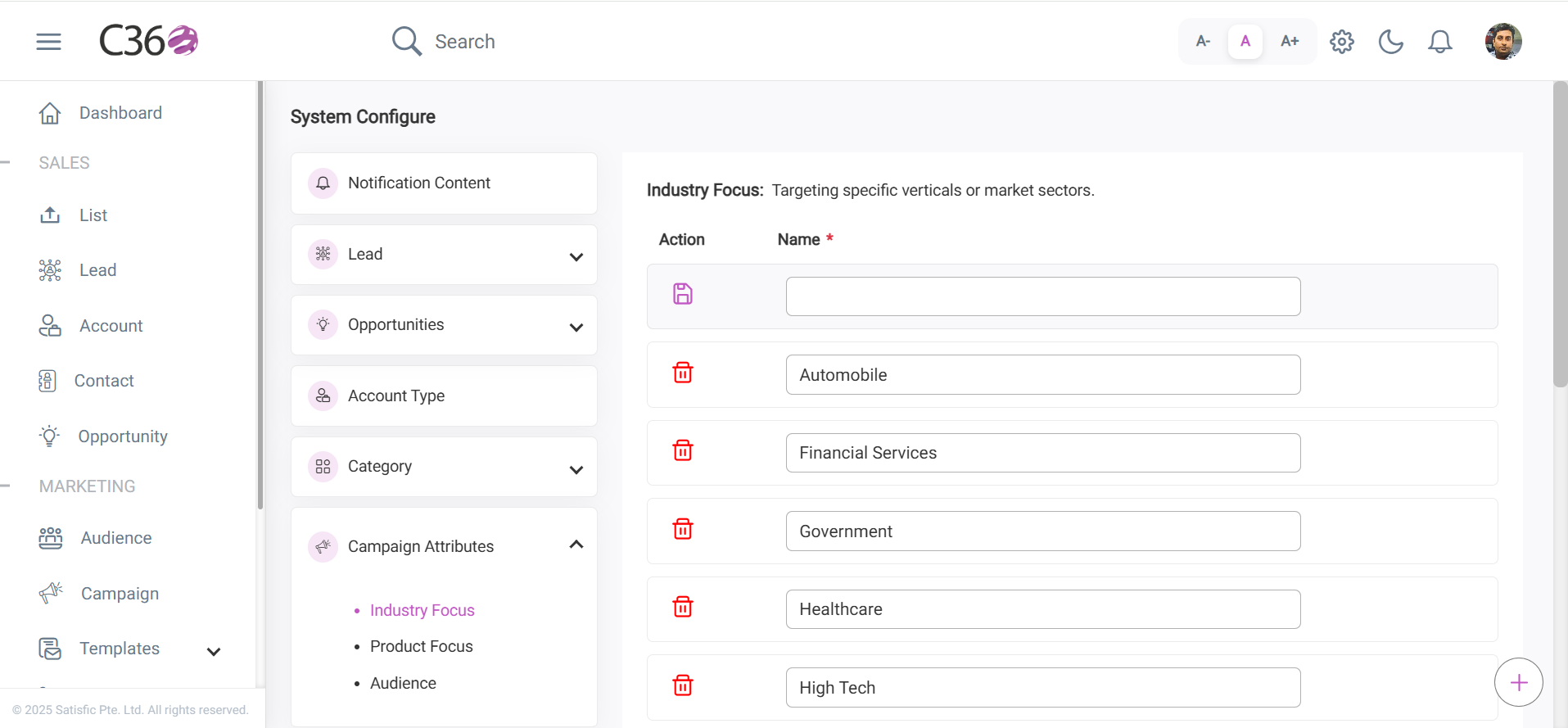
Vertical industries represent specific sectors in which businesses operate, such as healthcare, finance, retail, manufacturing, technology, hospitality, and education. Each industry has unique characteristics, audiences, and requirements.
⚡ Actions for Industry Focus
- ➕ Add
- ✏️ Edit
- 🗑️ Delete
- Click the Add button at the top.
- Enter the desired industry type in the input field.
- Click Save to store the new industry type.
- Select the type you want to edit.
- Make inline edits directly in the field.
- Save changes by clicking outside the field or pressing Enter.
- Locate the Delete icon next to the industry type.
- Click the icon to remove the entry.
📦 Product Focus
Product types categorize the various products or services a business offers, depending on industry, market, and objectives.
⚡ Actions for Product Focus
- ➕ Add
- ✏️ Edit
- 🗑️ Delete
- Click the Add button at the top.
- Enter the desired product type.
- Click Save to store the new product type.
- Select the product type you want to edit.
- Make inline edits directly in the field.
- Save changes by clicking outside the field or pressing Enter.
- Locate the Delete icon next to the product type.
- Click the icon to remove it.
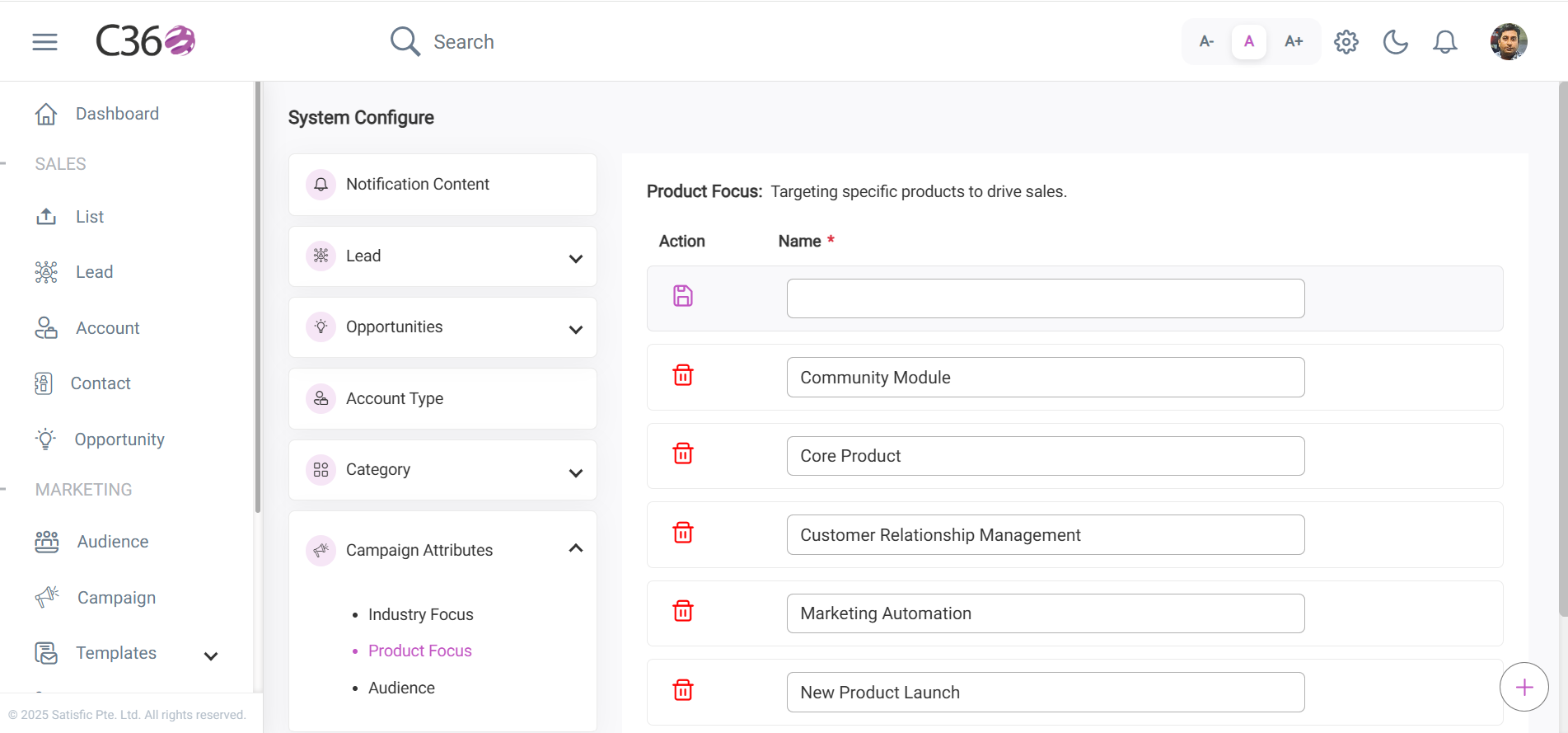
ℹ️ Both Products and Vertical Industries will appear in the Categories dropdown when adding or editing a campaign.
--
🎯 Audience
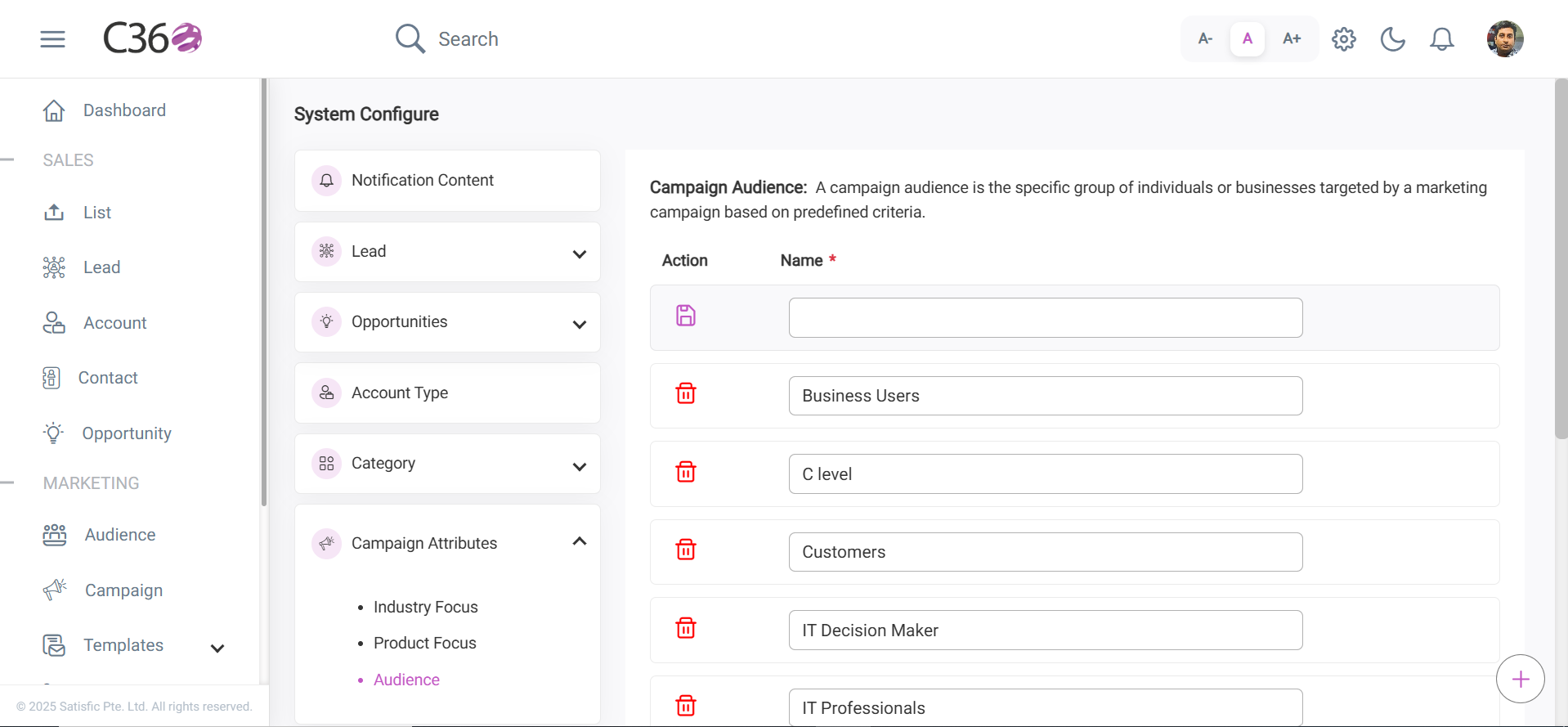
A Campaign Audience defines the group of individuals or businesses targeted by a marketing campaign. Audiences are selected based on predefined criteria to maximize engagement and campaign effectiveness.
⚡ Actions for Audience
- ➕ Add
- ✏️ Edit
- 🗑️ Delete
- Use the input field at the top.
- Enter the desired audience type.
- Click Save to store the new entry.
- Select the audience type you want to edit.
- Make inline edits directly in the field.
- Save changes by clicking outside the field or pressing Enter.
- Locate the Delete icon next to the entry.
- Click the icon to remove it.