📤 Upload List
Upload a list of leads, contacts and accounts , campaign audience lists into the CRM using a supported file format such as CSV or Excel.
To access it: ➡️ Go to Sales → Upload List from the left-hand menu.
👤📤 Upload Leads
Upload individual lead records with name, email, job title, and more.
- Go to Sales → Upload List.
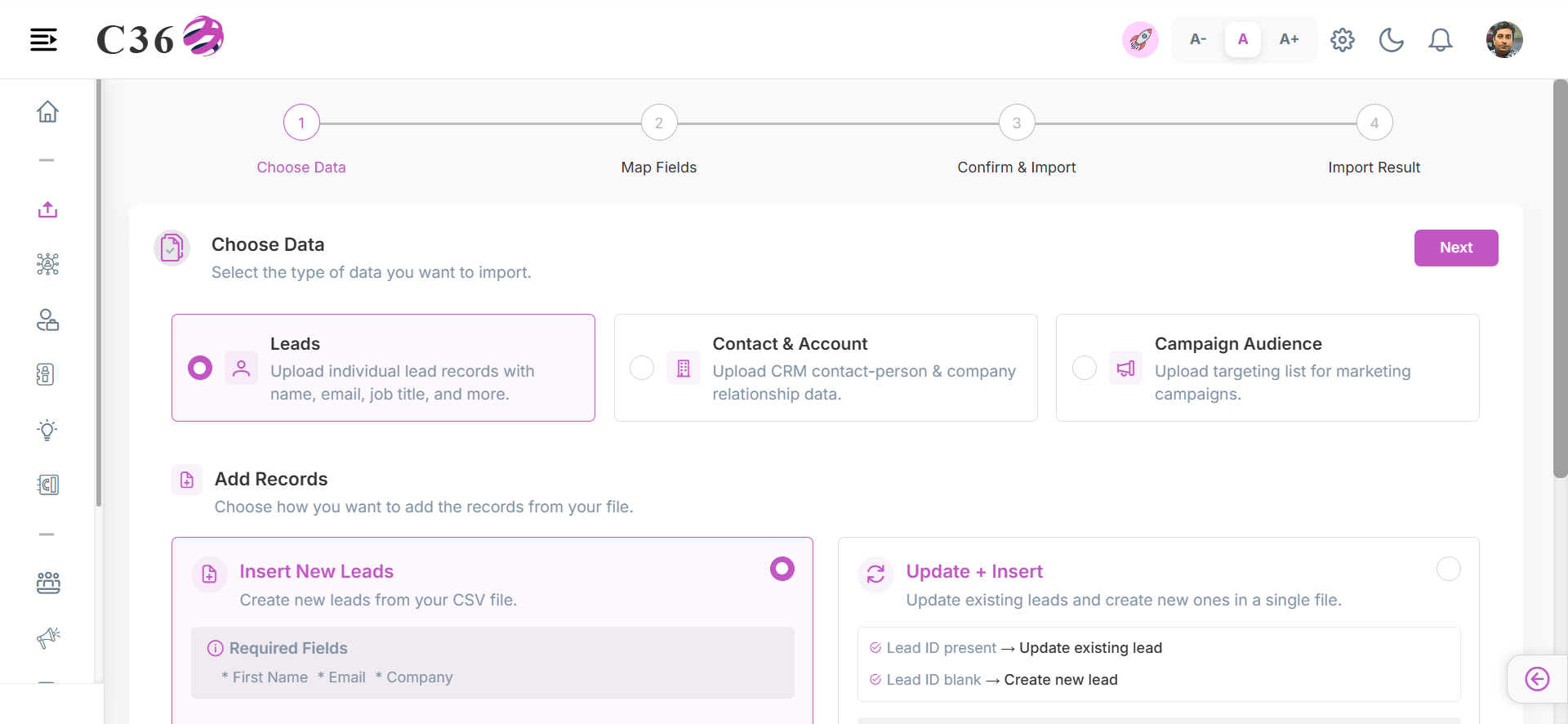
- ➕👤 Insert Lead
- 🔄👤 Update Existing Leads
- 🔄👤 Update and Insert Lead
- Select Insert New Lead .
- Upload your Excel file (File should be in .csv format).
- You can download the Sample File as a reference sheet.
- Click Next to proceed.
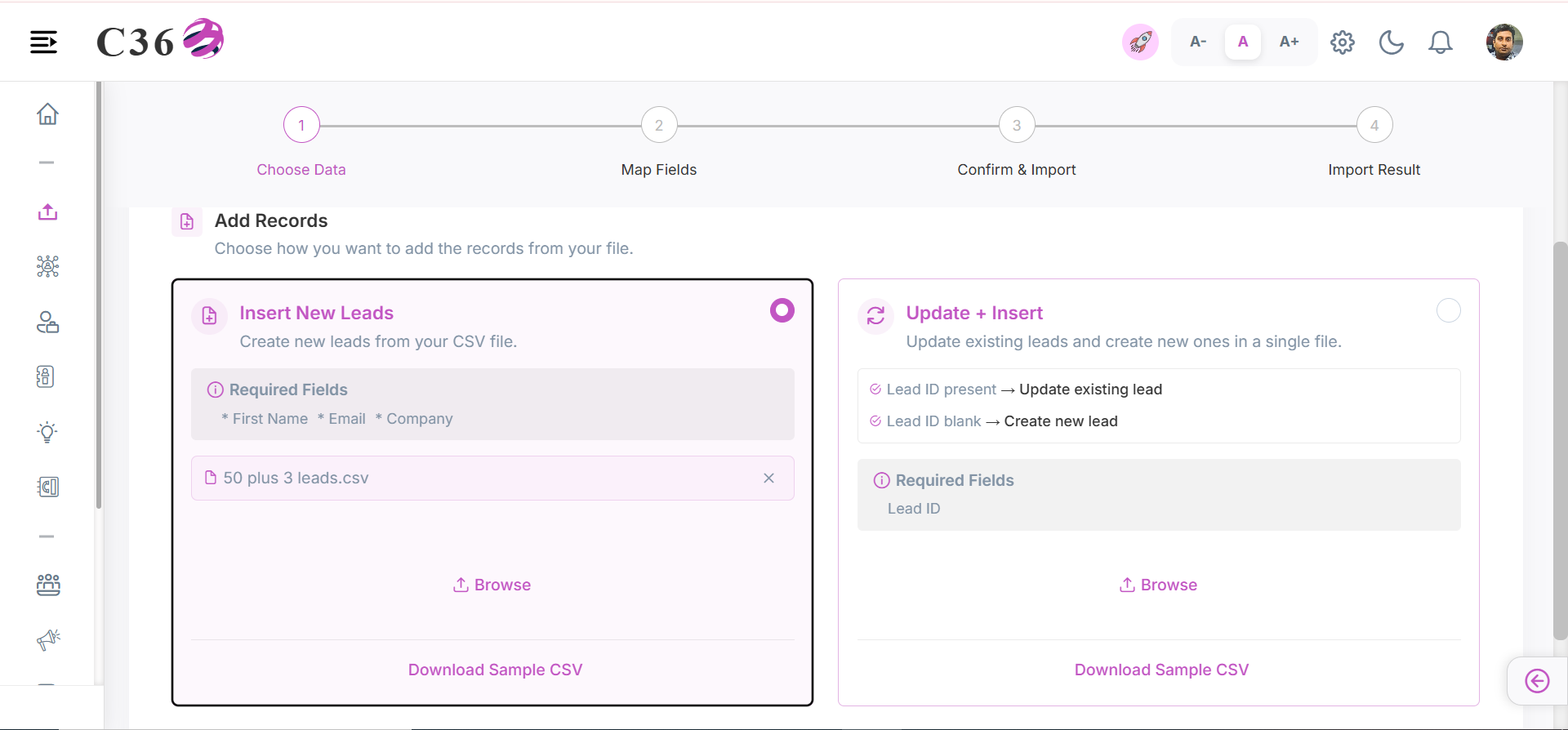
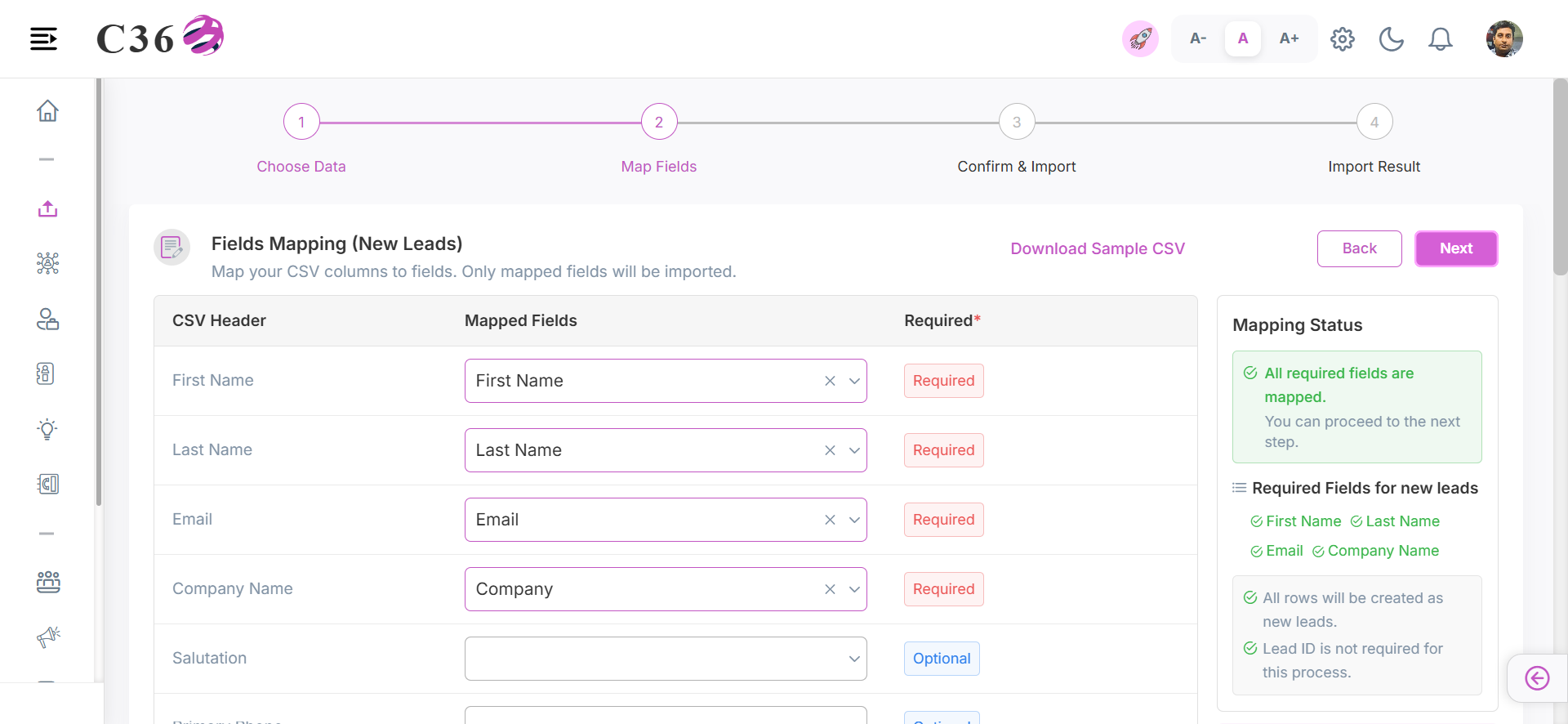
- Map your CSV columns to fields. Only mapped fields will be imported.
- Click Next to proceed.
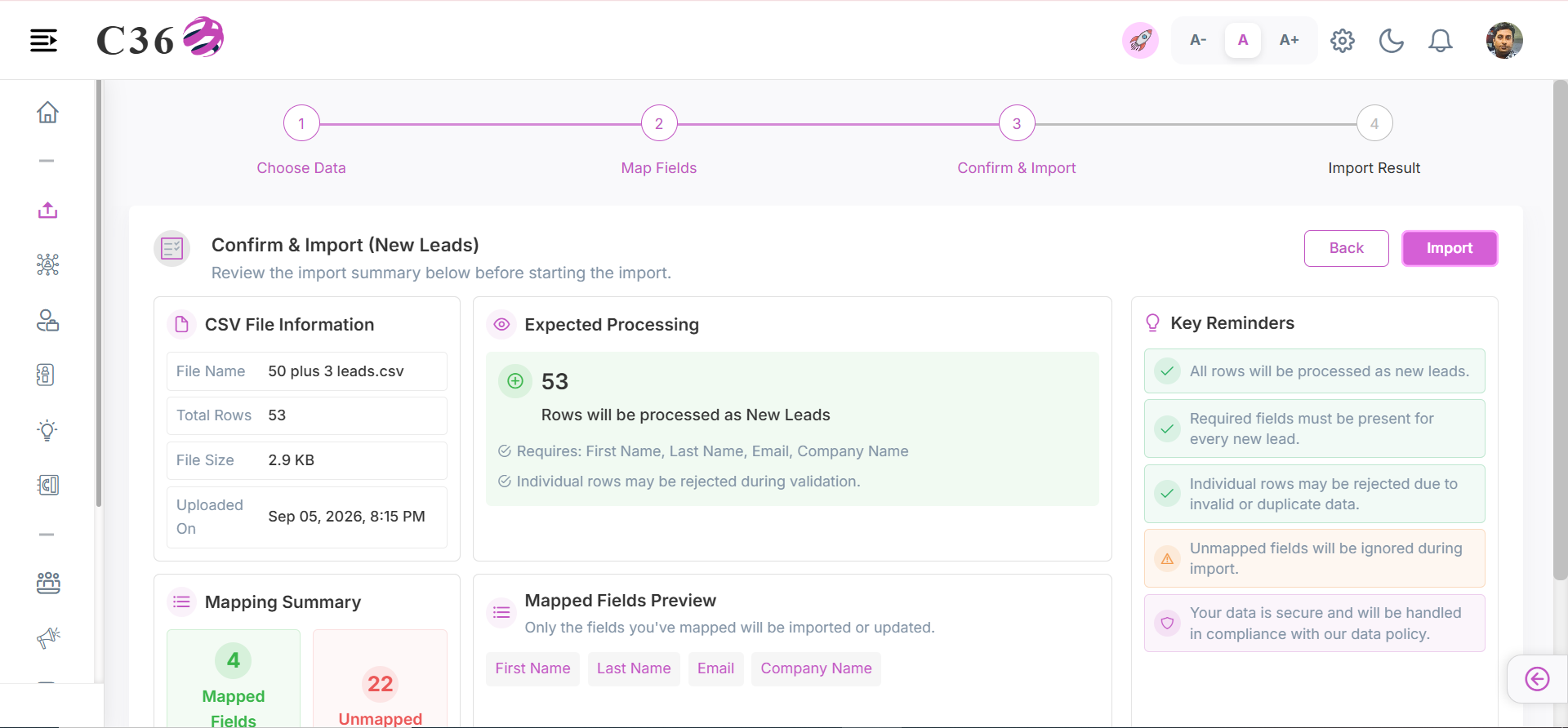
- Review the import summary below before starting the import.
- Click Import to start the import process.
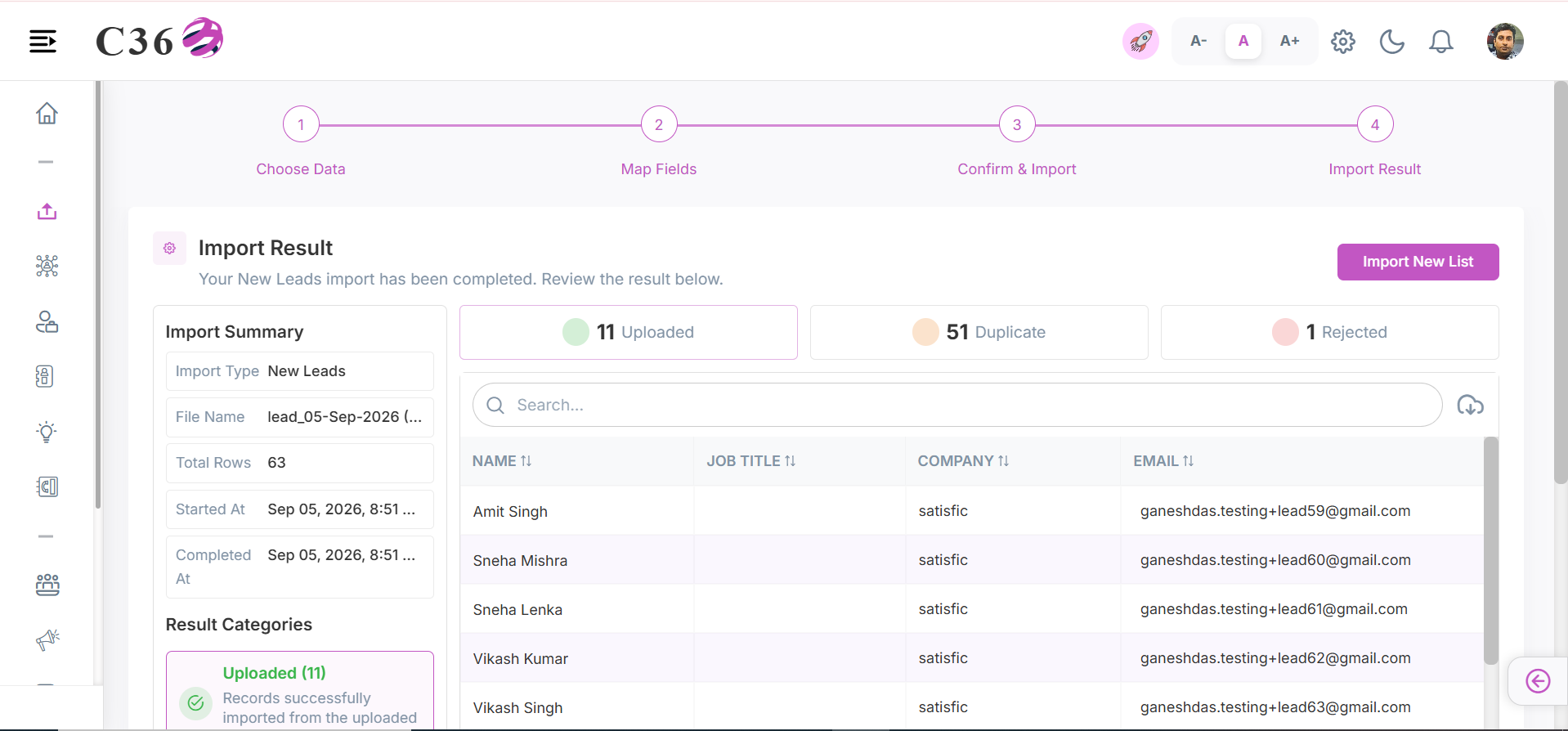
- After the import is complete, you will receive an import statistics page.
- You can review and download the import statistics report (Import, Duplicate, Rejected) for your records.
- Click on Import New List to import another list if needed.
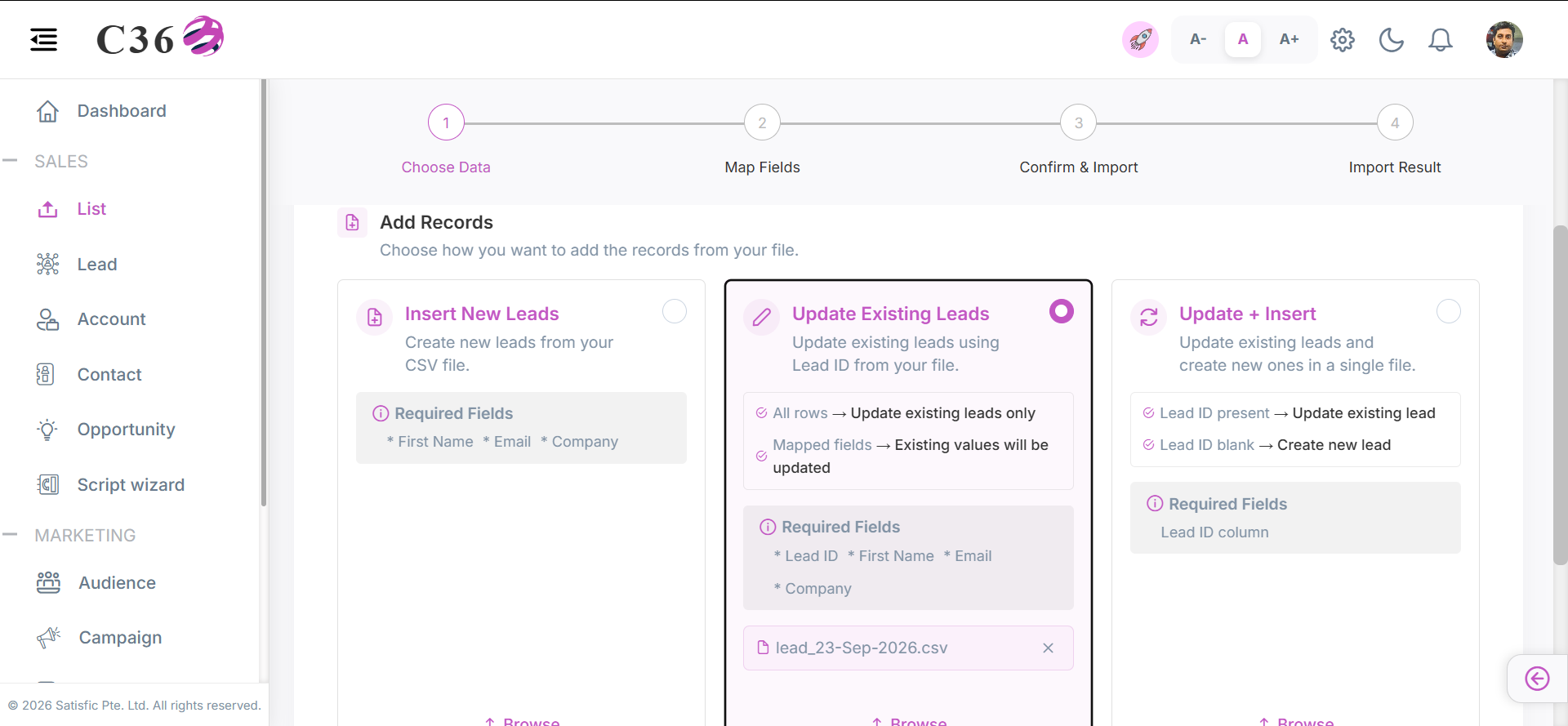
- Select Update Existing Leads.
- Upload your Excel file (File should be in .csv format).
- You can download the Sample File as a reference sheet.
- Click Next to proceed.
note
- Lead ID is mandatory for this process.
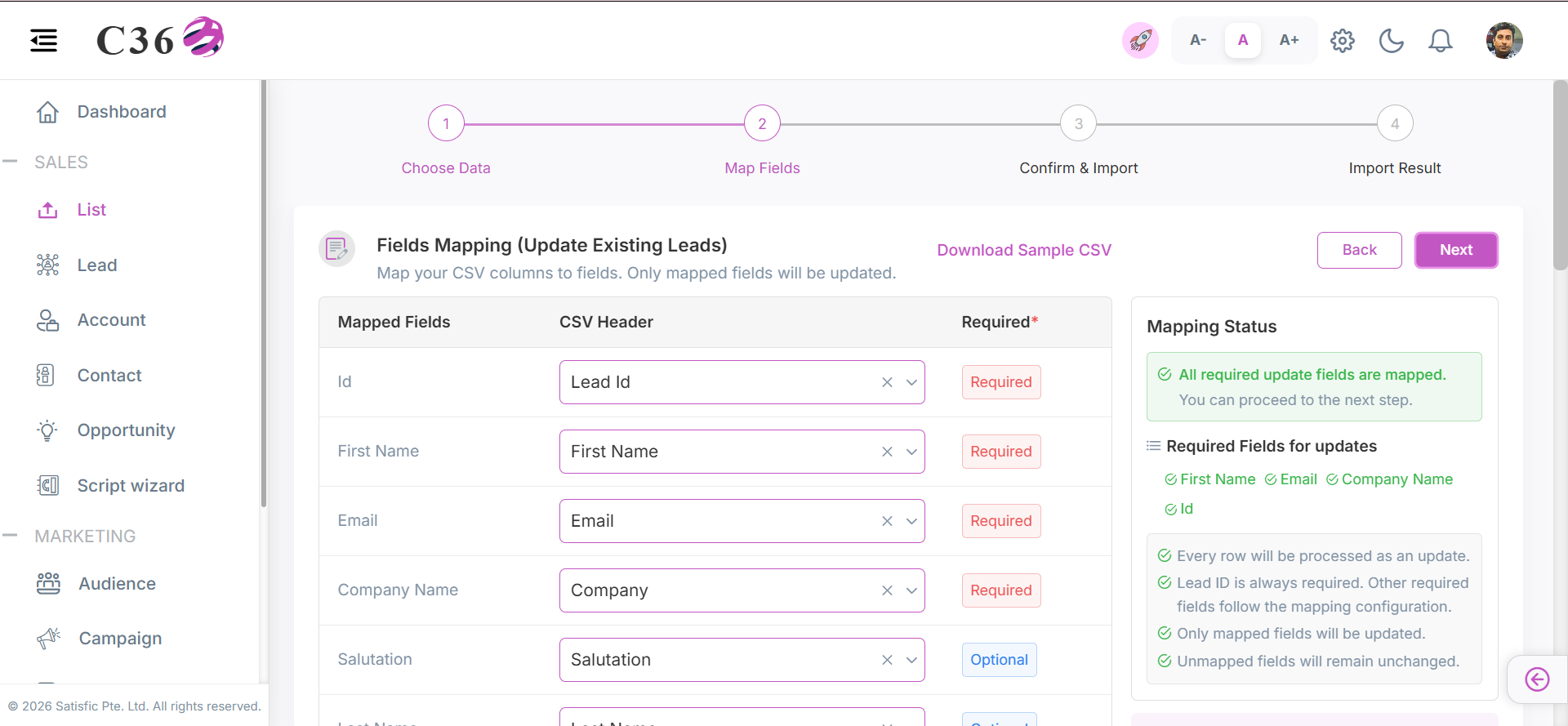
- Map your CSV columns to fields. Only mapped fields will be imported.
- Click Next to proceed.
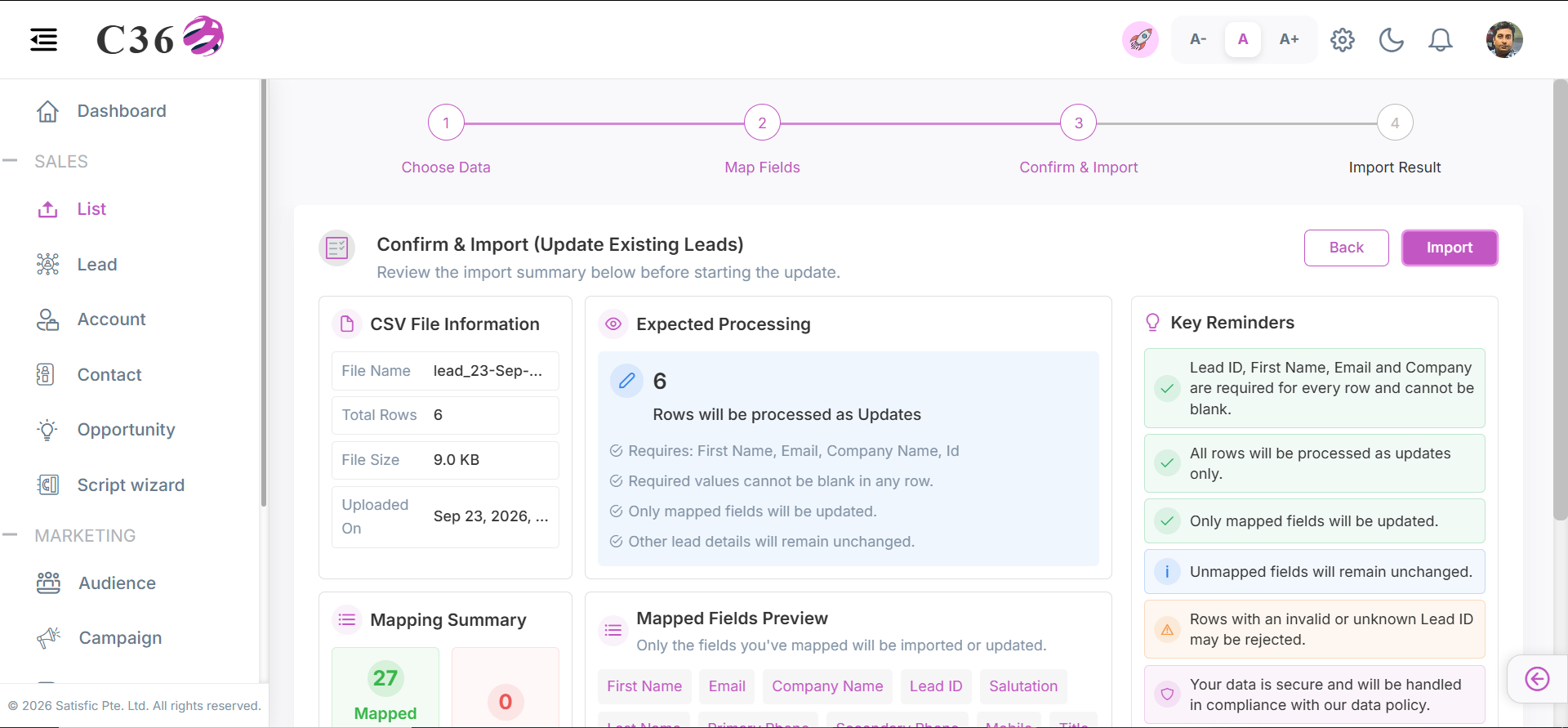
- Review the import summary below before starting the import.
- Click Import to start the import process.
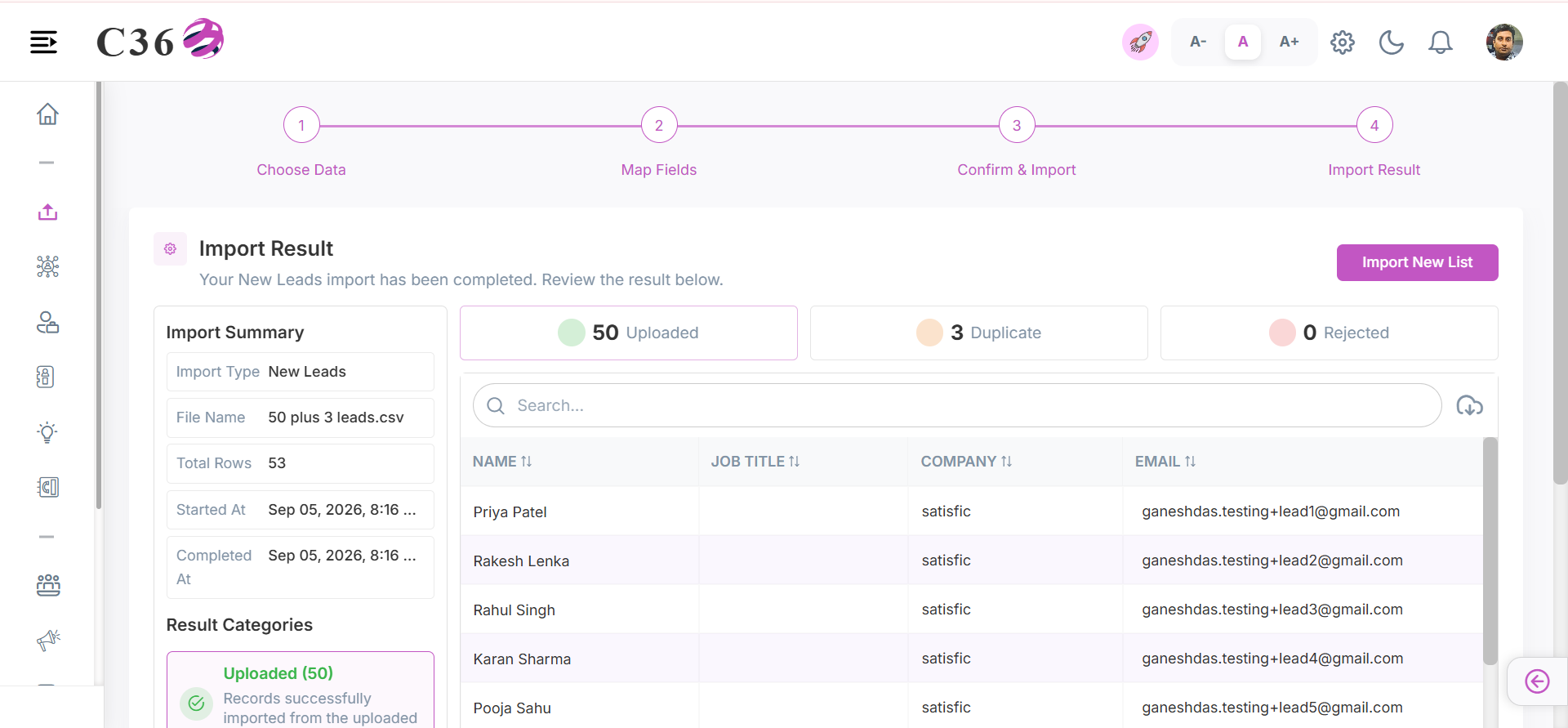
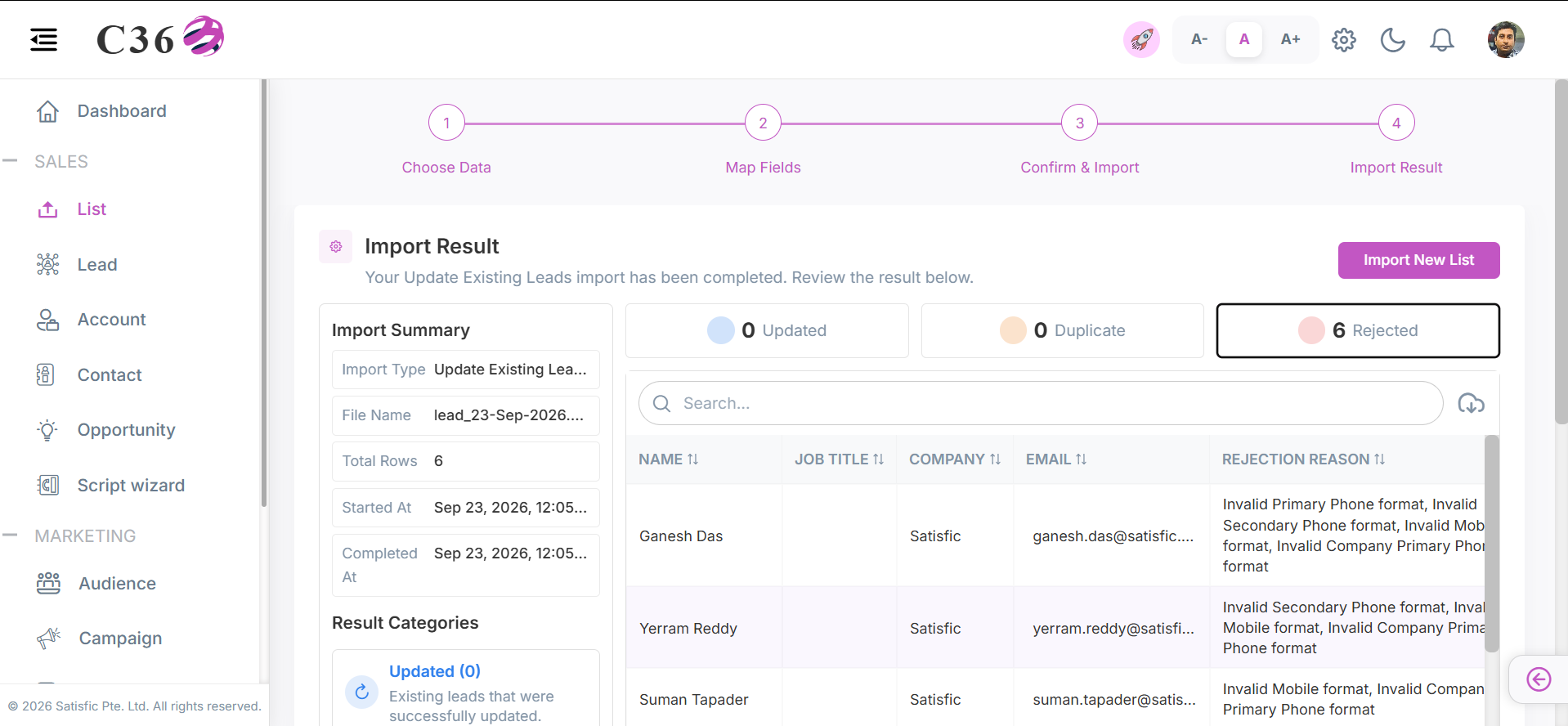
- Your Update existing lead has been completed.
- You can review and download the import statistics report (Update, Duplicate, Rejected) for your records.
- Click on Import New List to import another list if needed.
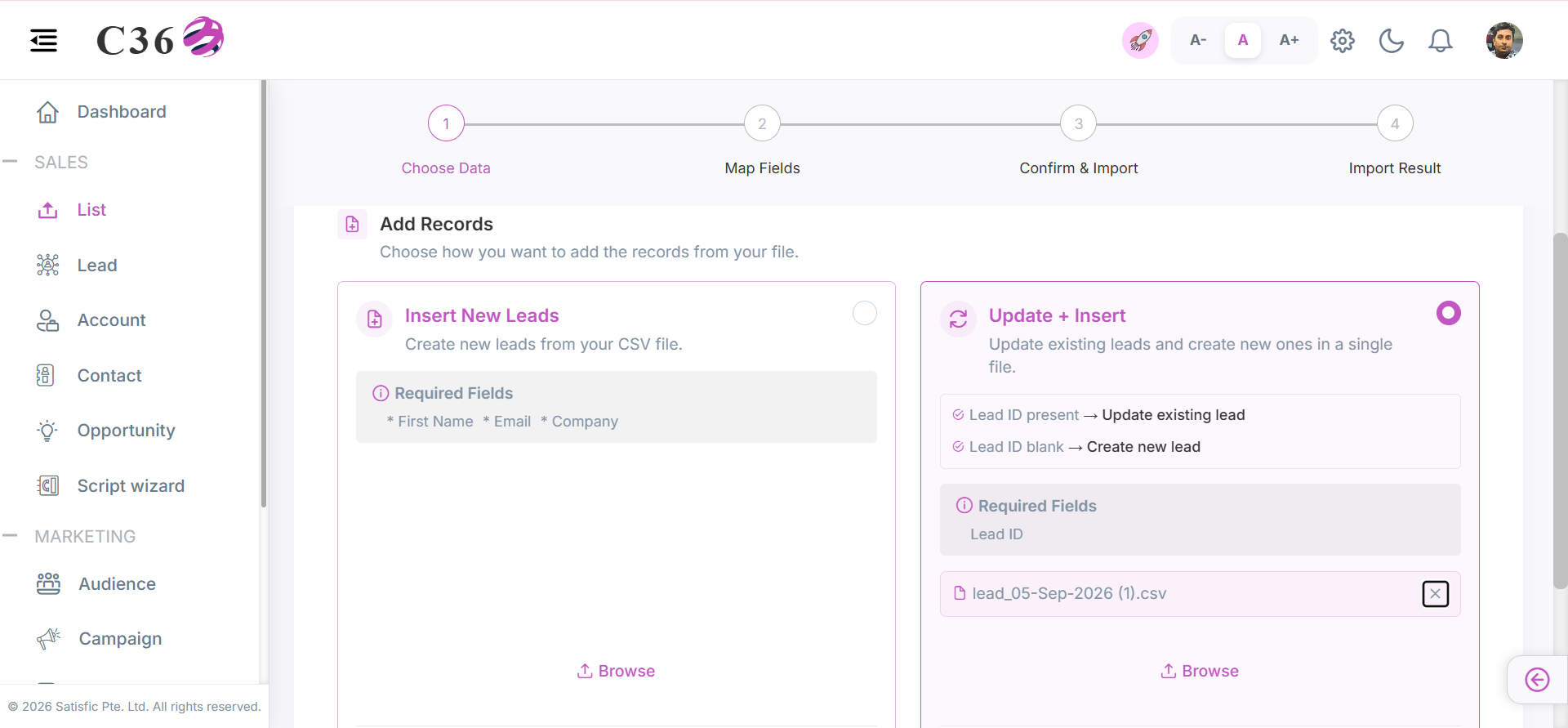
- Select Update+Insert .
- Upload your Excel file (File should be in .csv format).
- You can download the Sample File as a reference sheet.
- Click Next to proceed.
note
- Rows with Lead ID will update the leads.
- Empty Lead ID columns will add the leads as new.
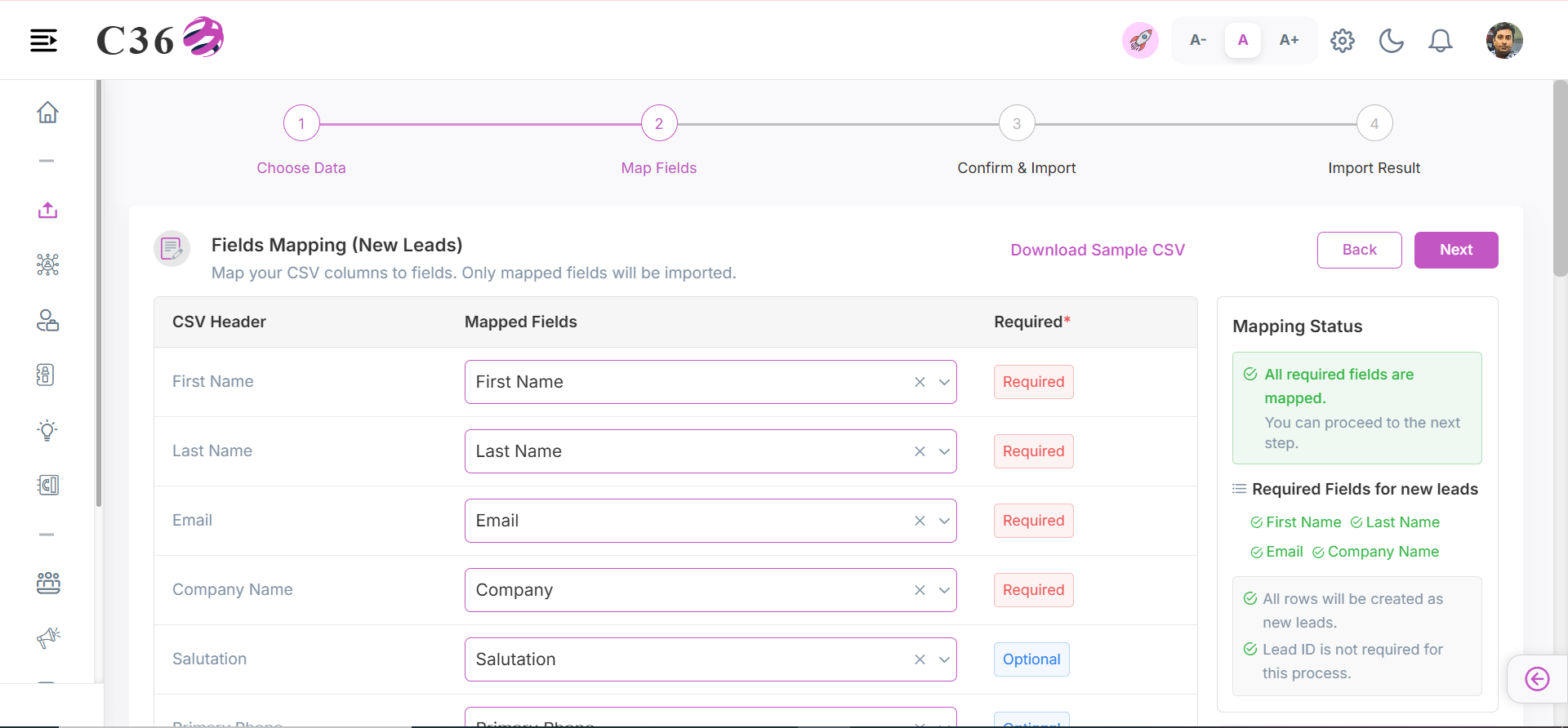
- Map your CSV columns to fields. Only mapped fields will be imported.
- Click Next to proceed.
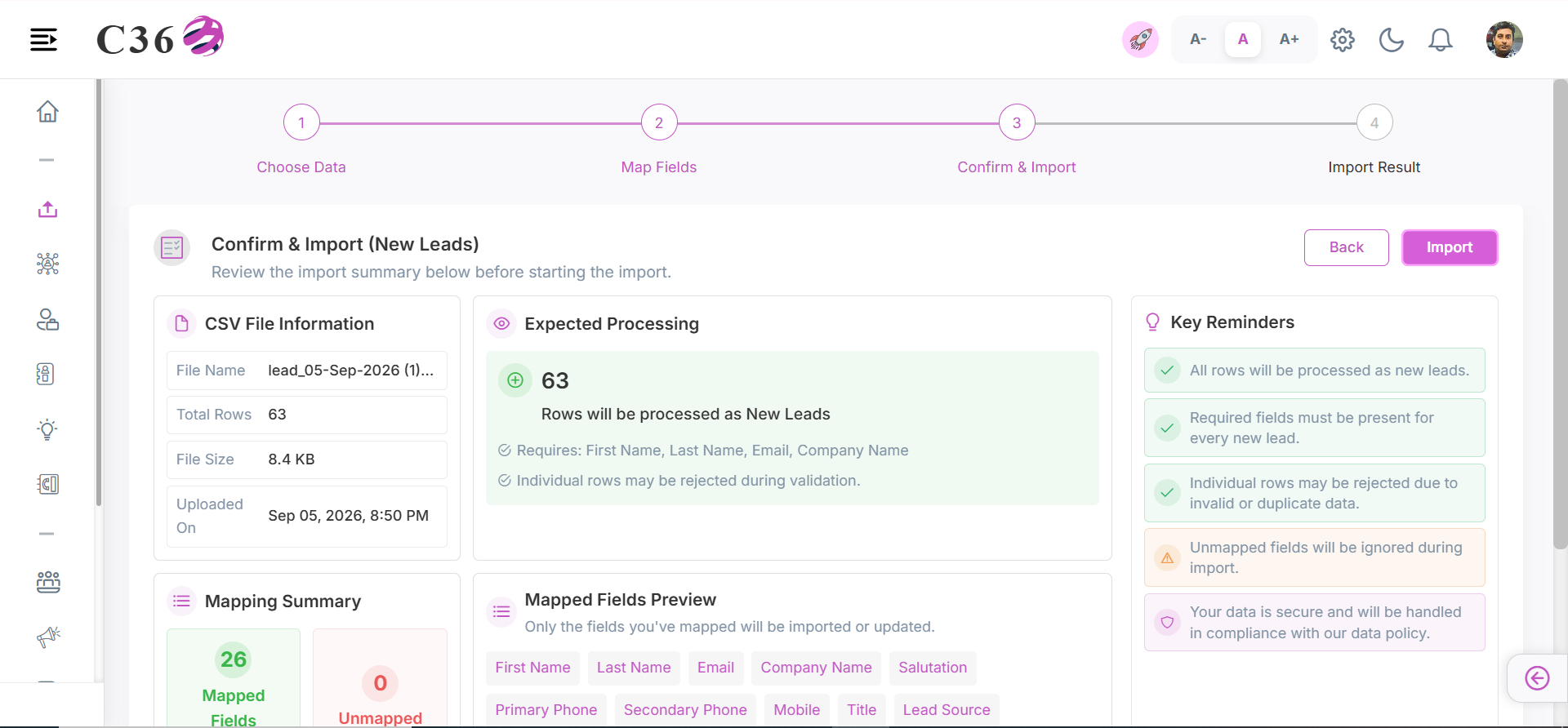
- Review the import summary below before starting the import.
- Click Import to start the import process.
- Your Update + Insert import has been completed.
- You can review and download the import statistics report (Import, Duplicate, Rejected) for your records.
- Click on Import New List to import another list if needed.
info
- The system will automatically map the columns based on the header names in your Excel file. You can manually adjust the mapping if needed.
- Make sure to map all required fields (e.g., First Name, Last Name, Email,Company Name) to avoid import errors.
- Make sure phone number fields are in the correct format (e.g., 678998090906) to avoid import errors.
- Minimun 7 characters and maximum 15 characters are allowed for phone number field.
- Empty phone number fields will be allowed during the import process as it is not a required field.
Click to see phone number field format requirements
- No Hyphens (-) or spaces in the phone number.
- No parentheses () in the phone number.
- No slashes (/) in the phone number.
- No letters or special characters in the phone number.
👥📤 Upload Accounts And Contacts
Upload CRM contact-person & company relationship data.
- Go to Sales → Upload List.
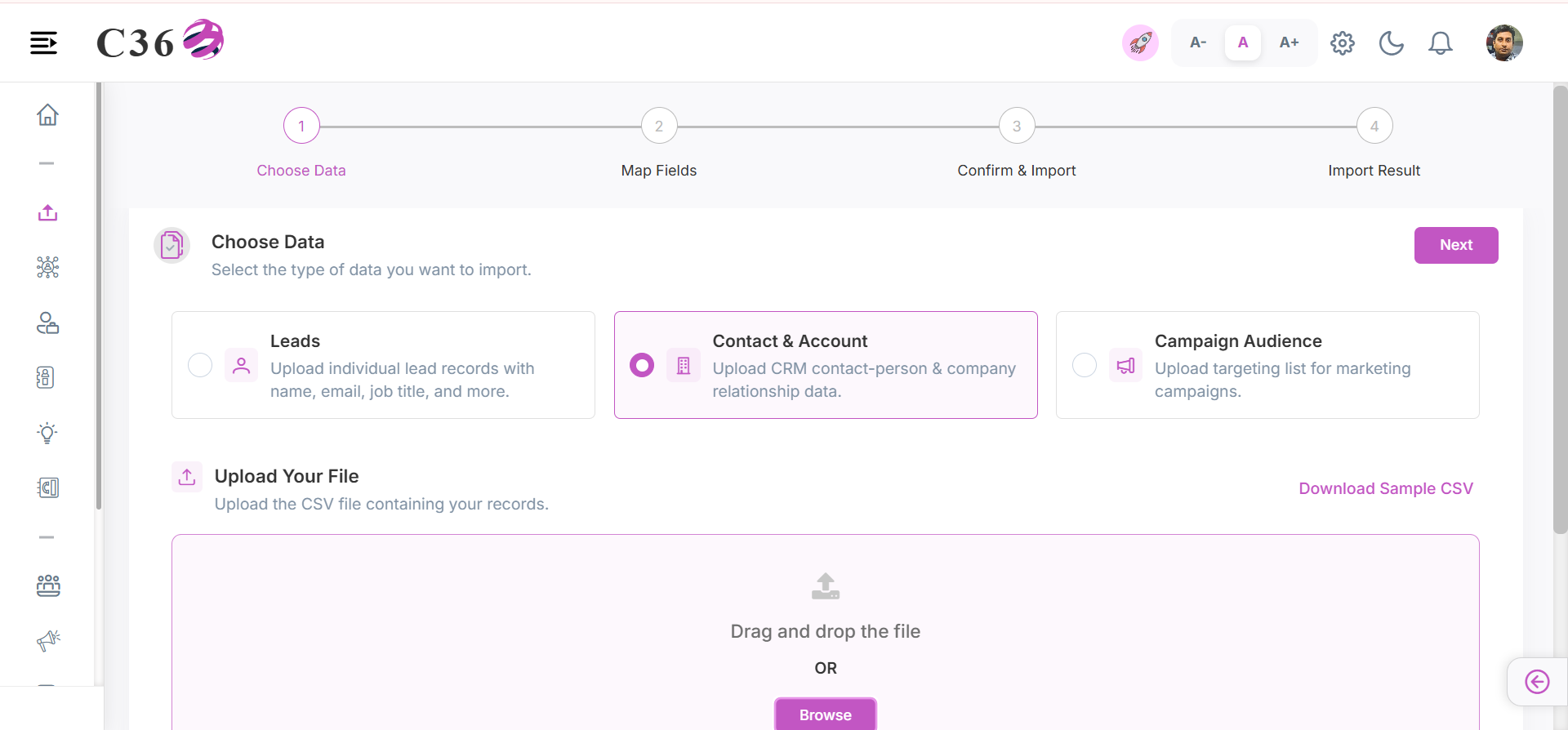
- Select Account & Contact.
- Upload your Excel file (File should be in .csv format).
- You can download the Sample File as a reference sheet.
- Click Next to proceed.
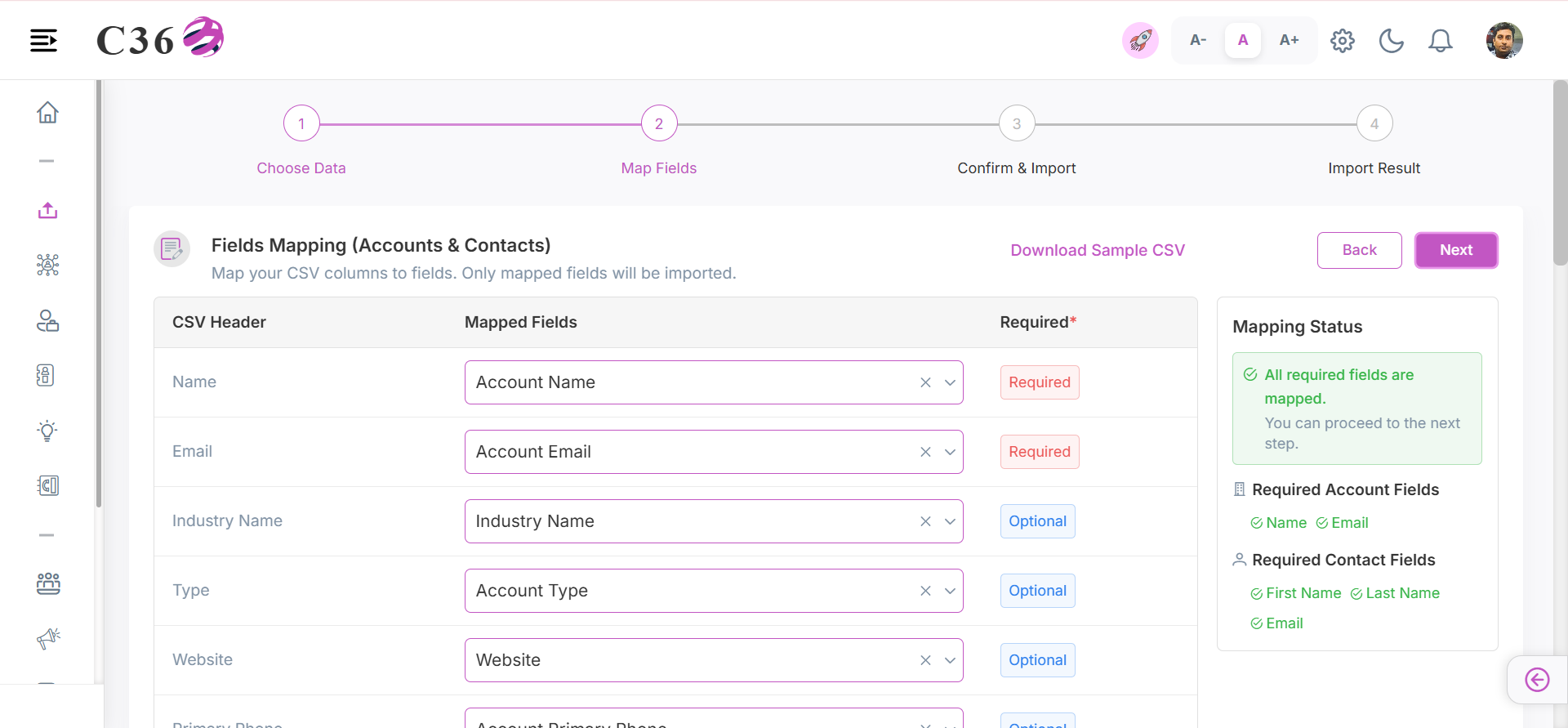
- Map your CSV columns to fields. Only mapped fields will be imported.
- Click Next to proceed.
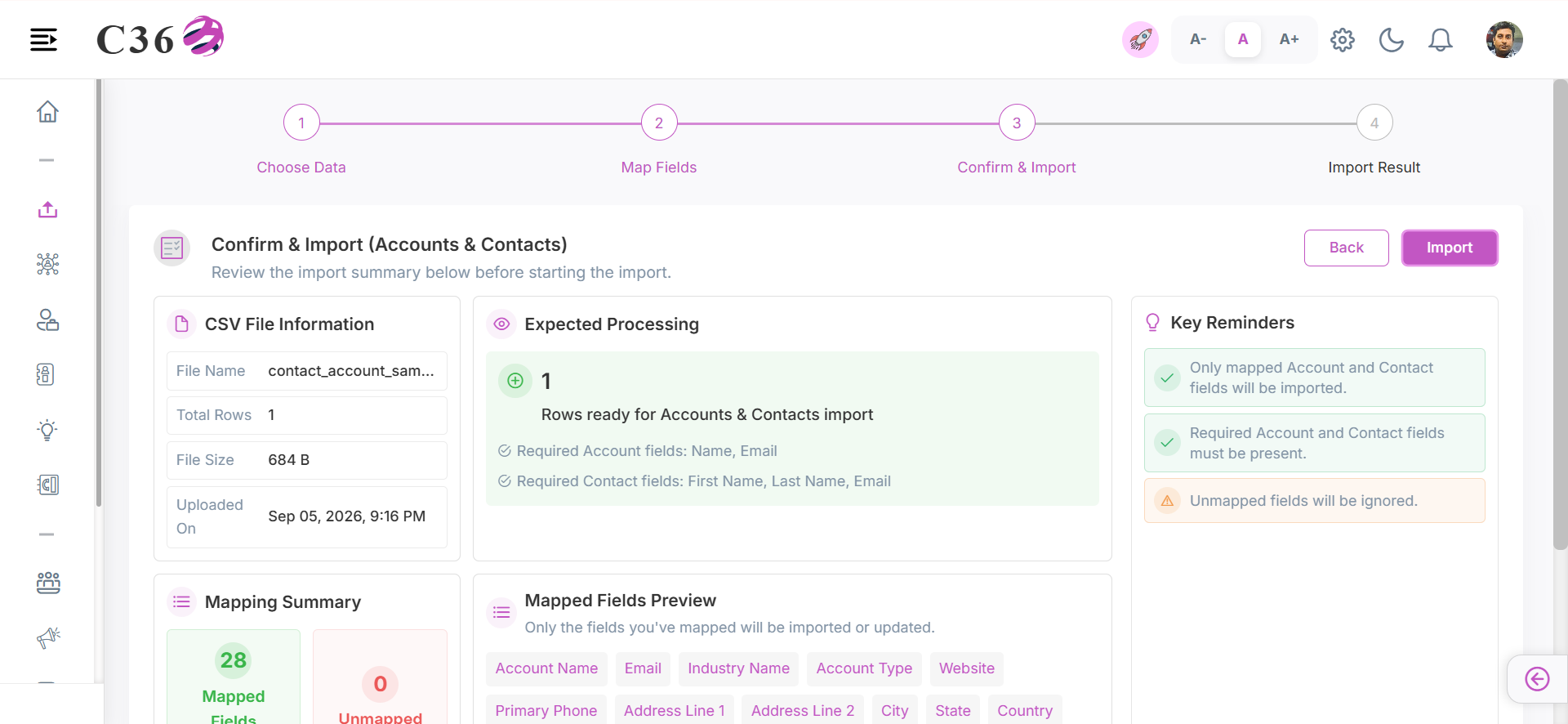
- Review the import summary, before starting the import.
- Click Import to start the import process.
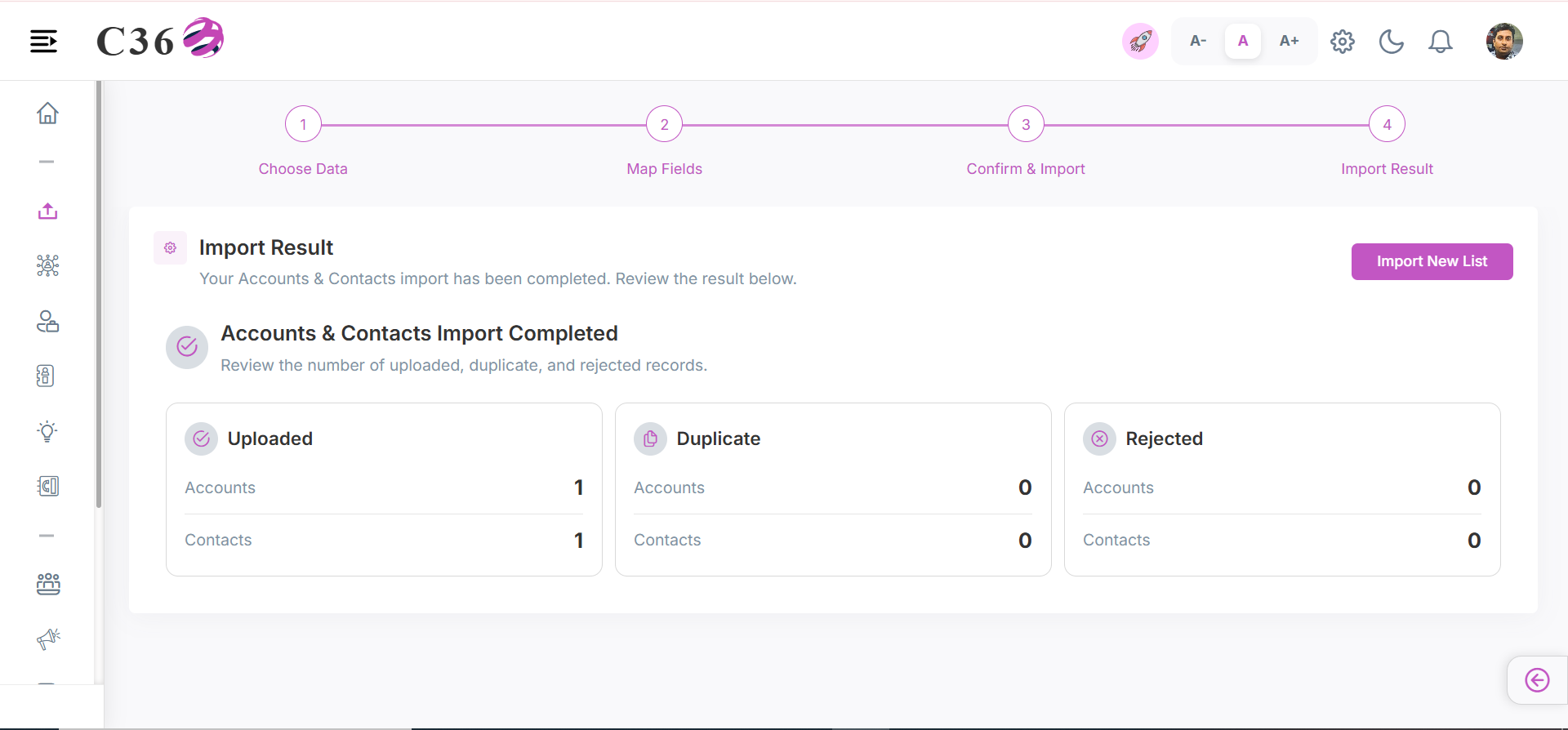
- Your Accounts & Contacts import has been completed.
- You can review the import statistics report.
- Click on Import New List to import another list if needed.
info
- The system will automatically map the columns based on the header names in your Excel file. You can manually adjust the mapping if needed.
- Required Account Fields:
- Name
- Required Contact Fields:
- First Name
- Last Name
🎯📤 Upload Campaign Audience List
Upload targeting list for marketing campaigns.
- Go to Sales → Upload List.
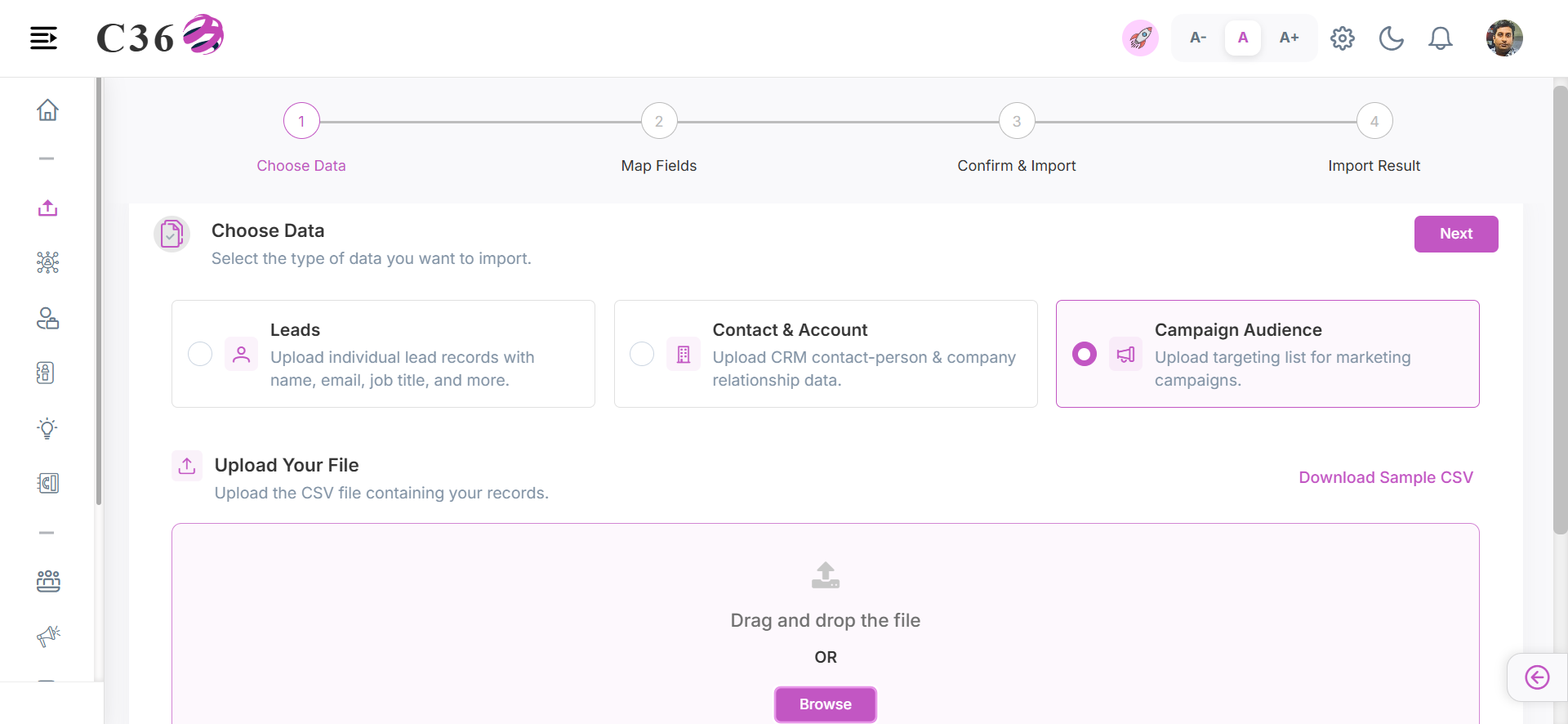
- Select Campaign Audience.
- Upload your Excel file (File should be in .csv format).
- You can download the Sample File as a reference sheet.
- Click Next to proceed.
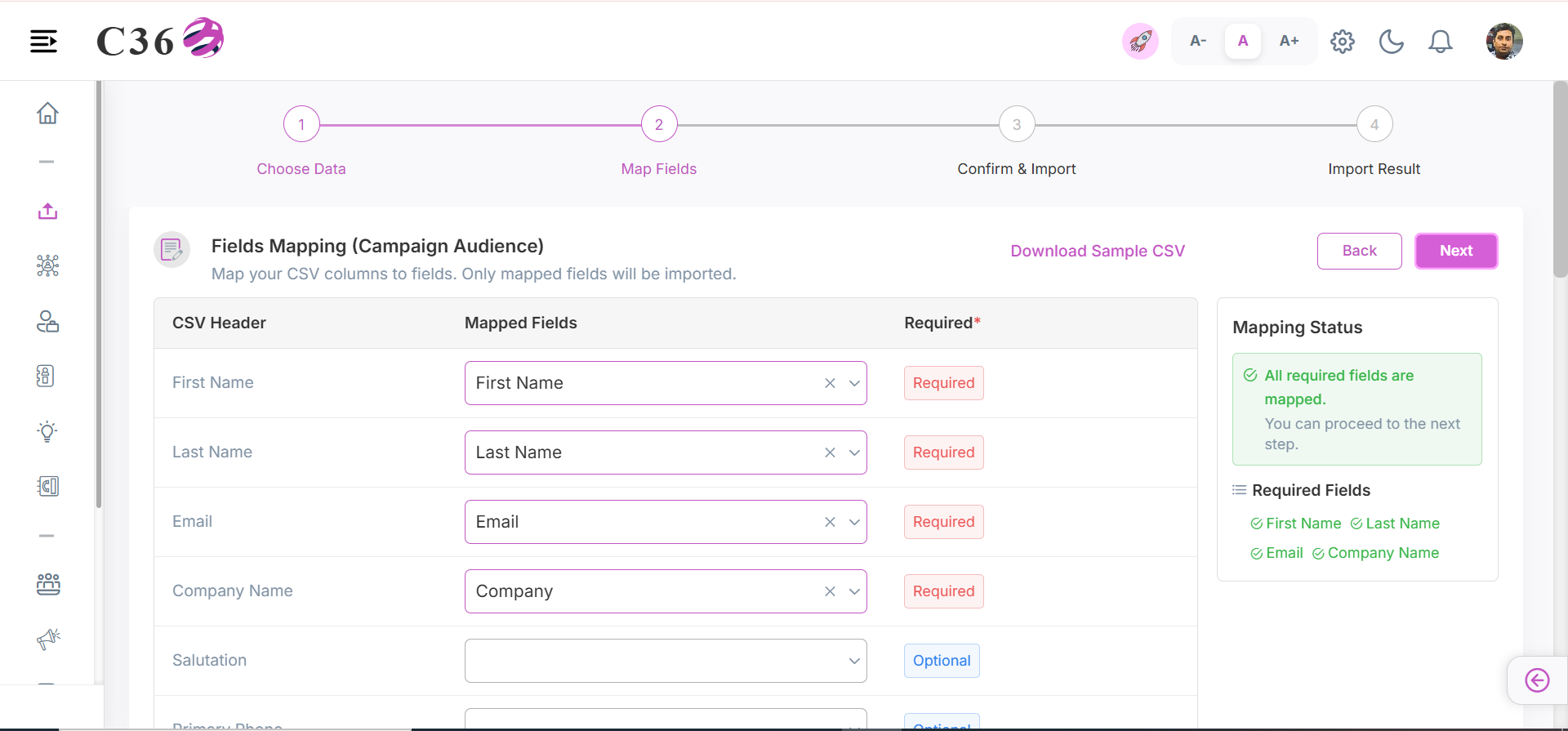
- Map your CSV columns to fields. Only mapped fields will be imported.
- Click Next to proceed.
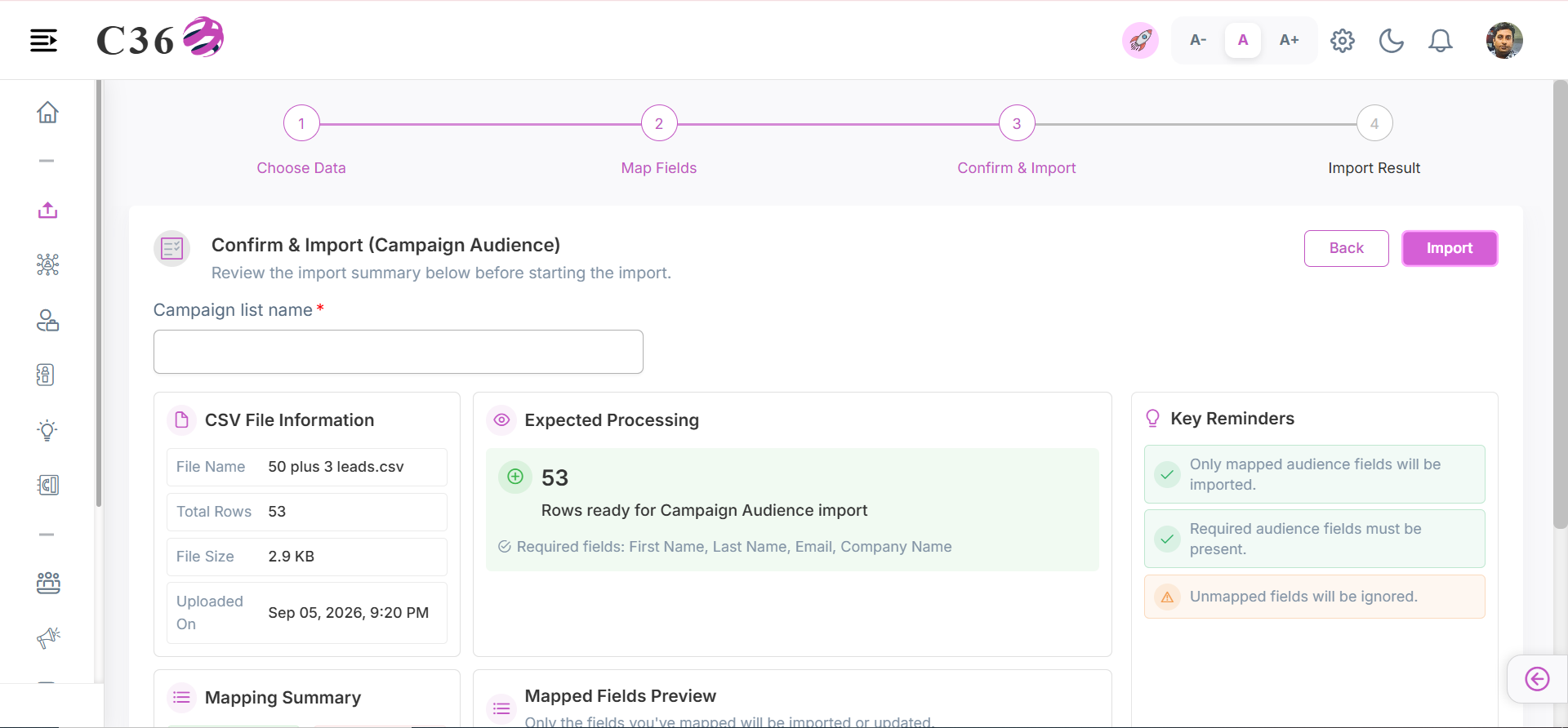
- Review the import summary, before starting the import.
- Give the Campaign List Name.
- Click Import to start the import process.
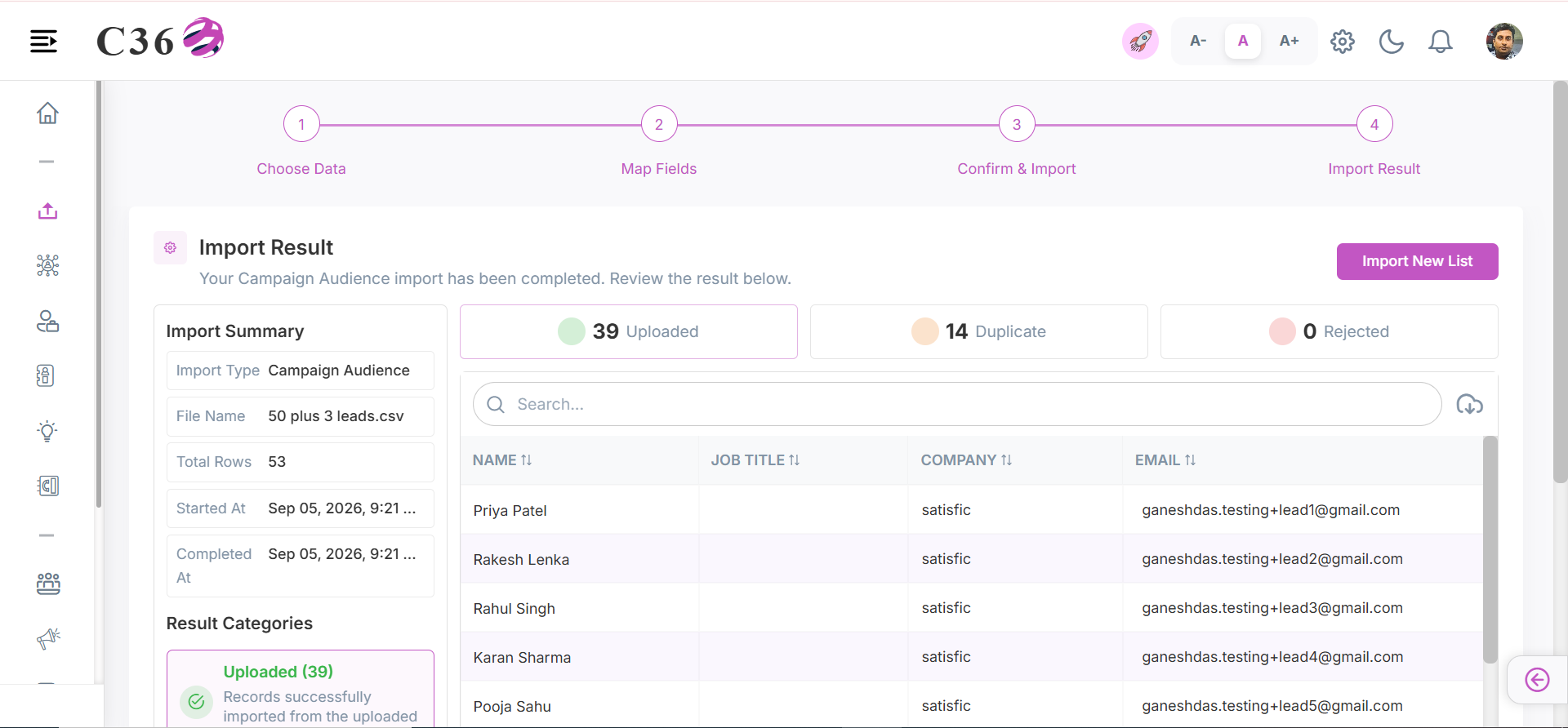
- After the import is complete, you will receive an import statistics page.
- You can review and download the import statistics report (Import, Duplicate, Rejected) for your records.
- Click on Import New List to import another list if needed.
info
- The system will automatically map the columns based on the header names in your Excel file. You can manually adjust the mapping if needed.
- Make sure to map all required fields (e.g., First Name, Last Name, Email,Company Name) to avoid import errors.
- Phone number fields format follow the same rules as mentioned in the Leads section above.