📄 Landing Page
The Landing Page module in C360 CRM helps you create, manage, and track campaign-specific pages that drive engagement and capture leads.
To access it:
➡️ Go to Marketing → Campaign Components → Landing Page from the left-hand menu.
📑 Landing Page Views
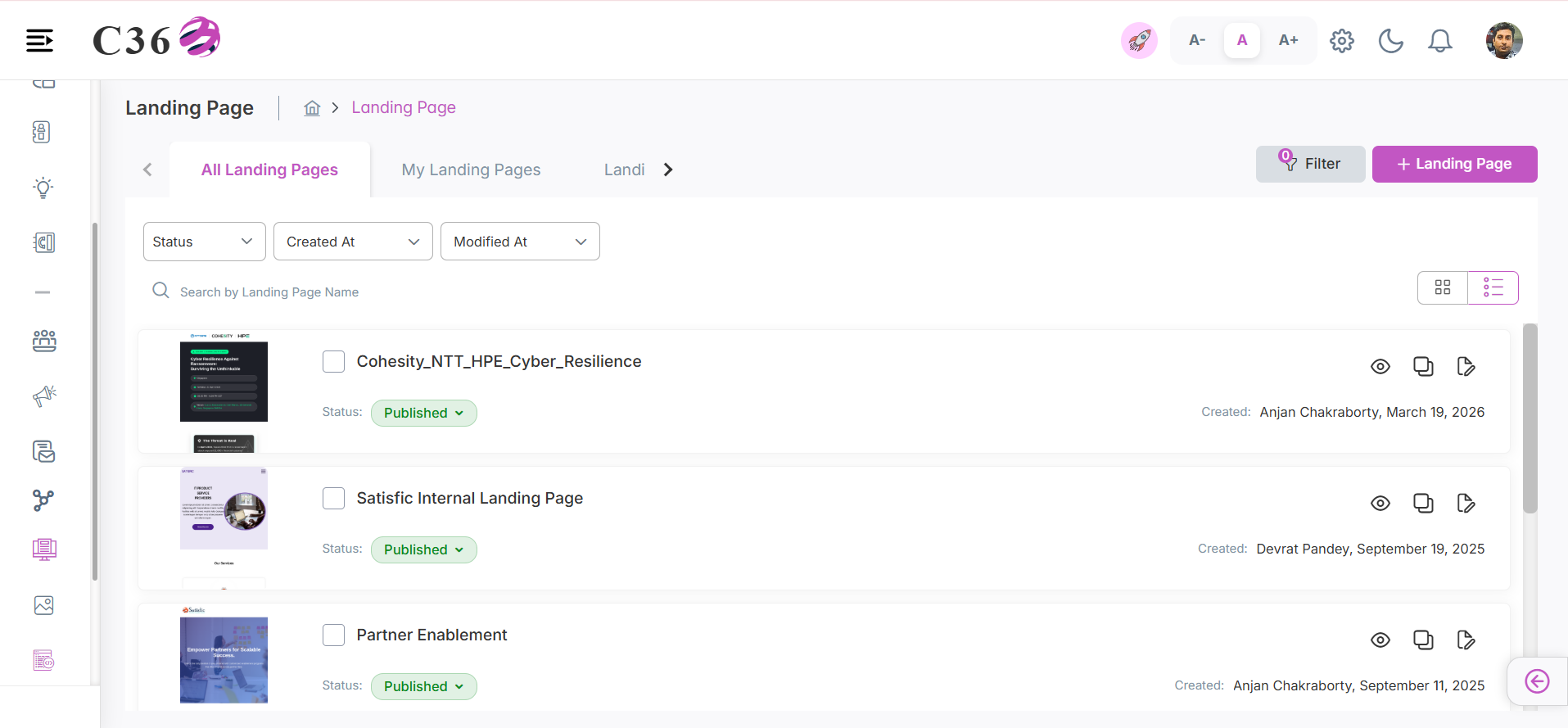
The Landing Page List offers multiple options to search, filter, and manage landing pages:
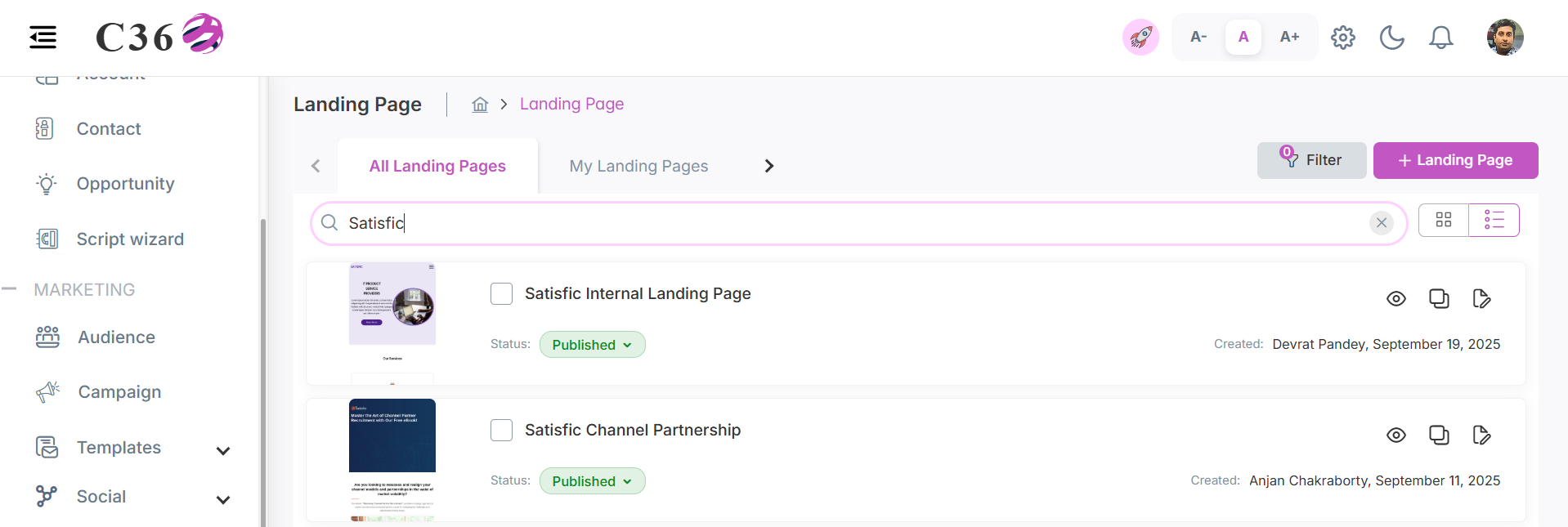
- Use the Search bar to find specific landing pages.
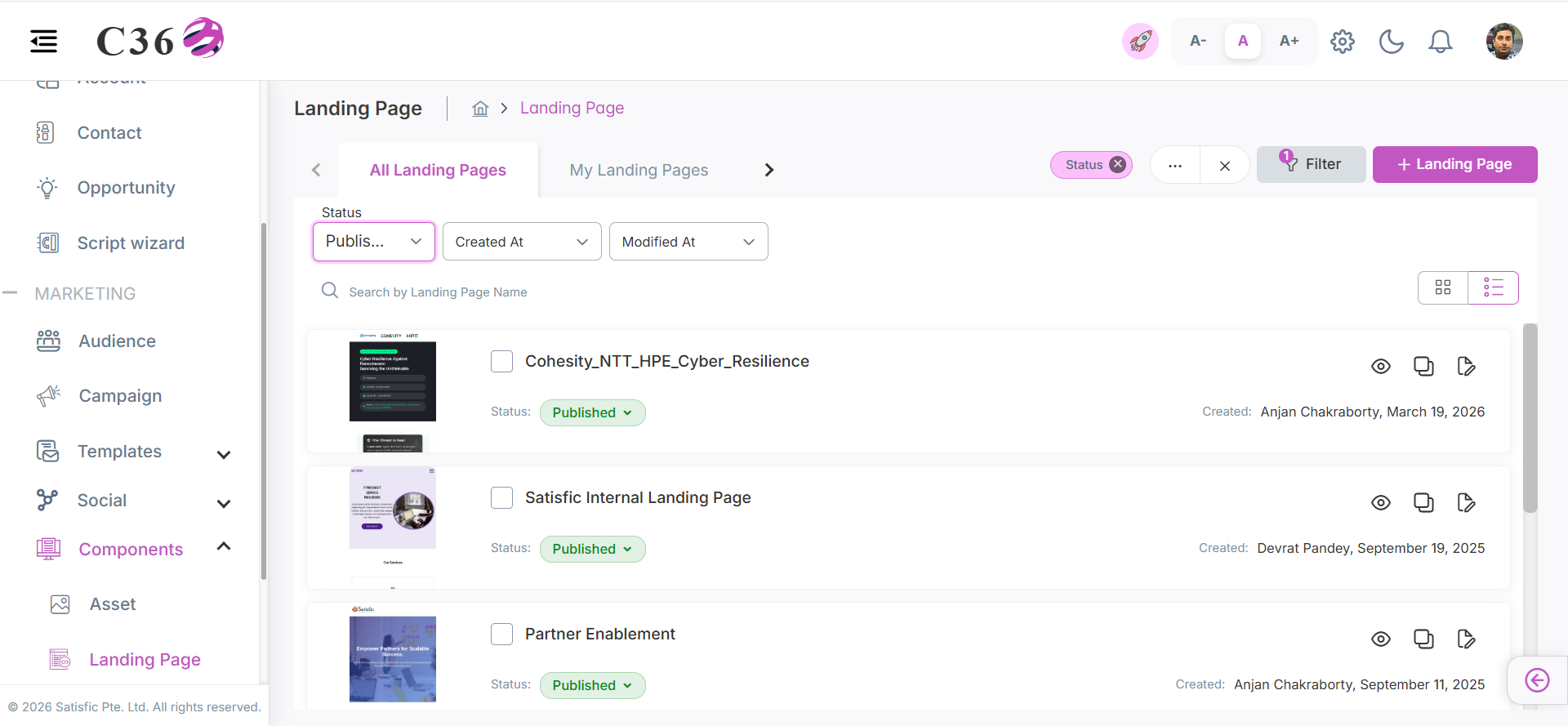
- Use the Filter to refine results by status, date, or ownership.
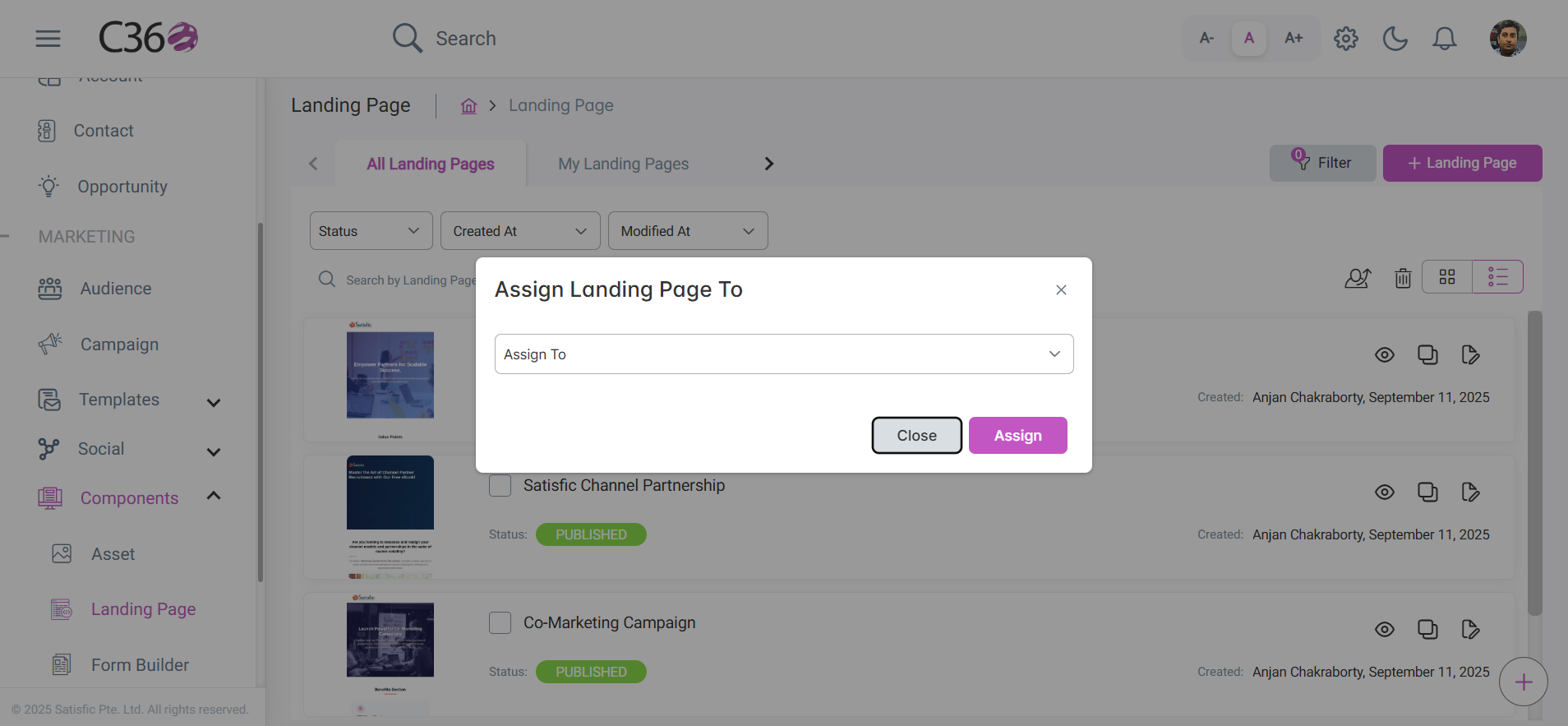
- Assign landing pages to groups using the Assign To button.
- Add a new landing page using the Add Landing Page button.
- Can change the status of landing page from Published to Draft and vice versa directely.
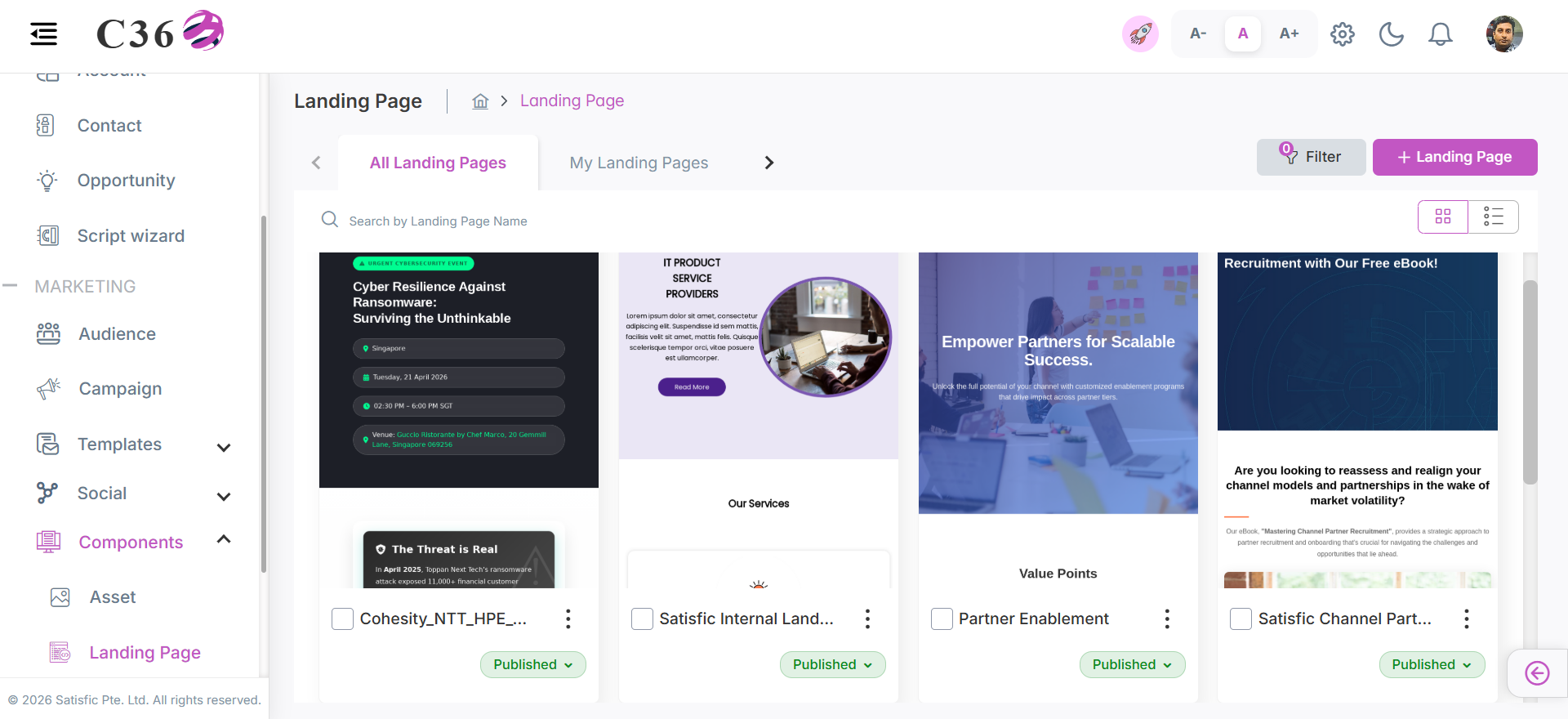
- 🔲 Grid View
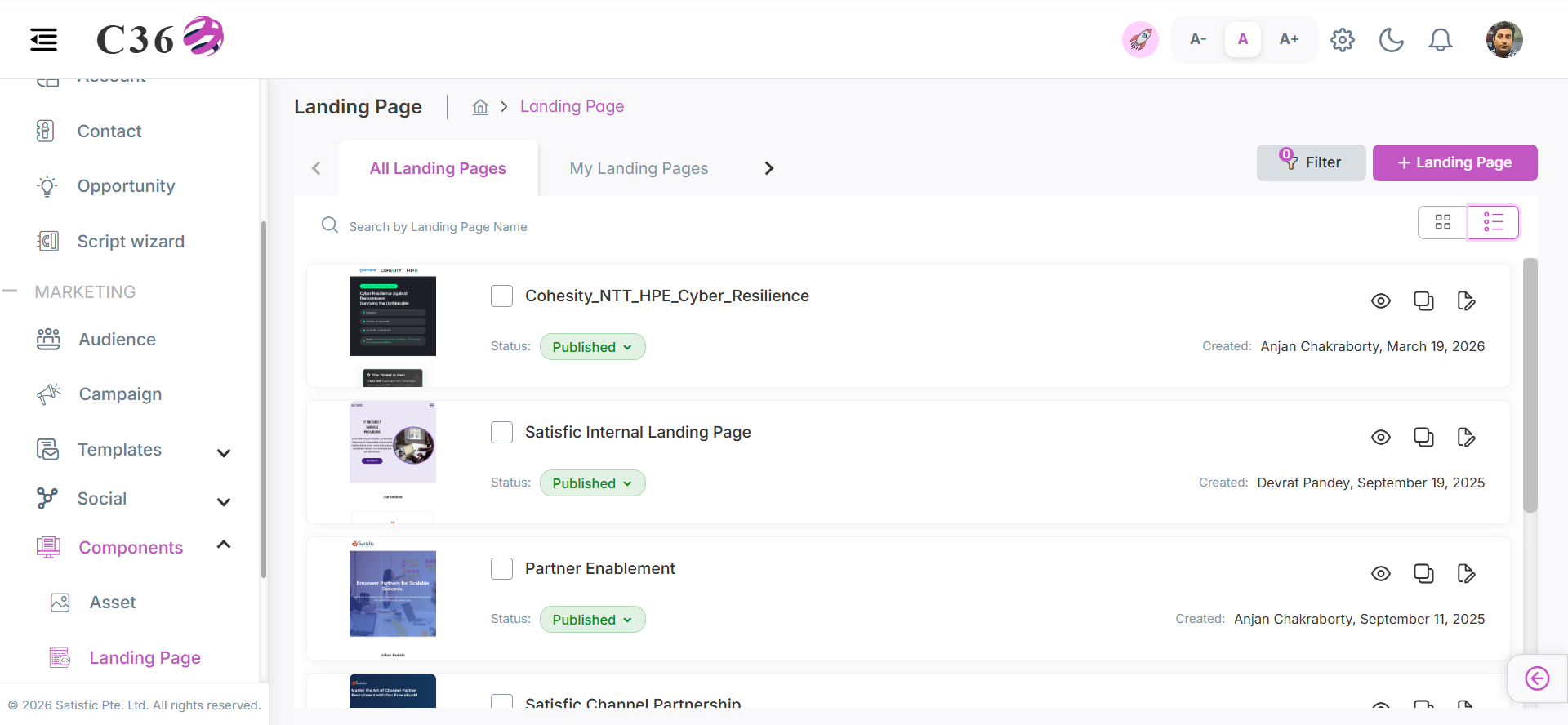
- 📜 List View
- Grid View → Displays action dropdowns for Clone, Edit, Copy,Change Status, and shows a Preview option on hover.
- List View → Displays thumbnail, Change Status, created date, created by, with action icons for Preview, Copy, Clone, Edit.
🔍Searching for Landing Pages
Enter the landing page name in the Search bar and click the Search icon to view results.
🎛️Filtering Landing Pages
- Filter by Status, Created At, and Modified At.
- All Landing Pages/ My Landing Pages / Landing Pages Assigned To Me
- All Landing Pages: Created by me/Assigned to me/Created by below users.
- My Landing Pages: Created by me.
- Landing Pages Assigned To Me: The landing pages which were assigned to me by someone.
- Applied filters appear beside the filter section and can be cleared anytime.
🗑️ Deleting Landing Page
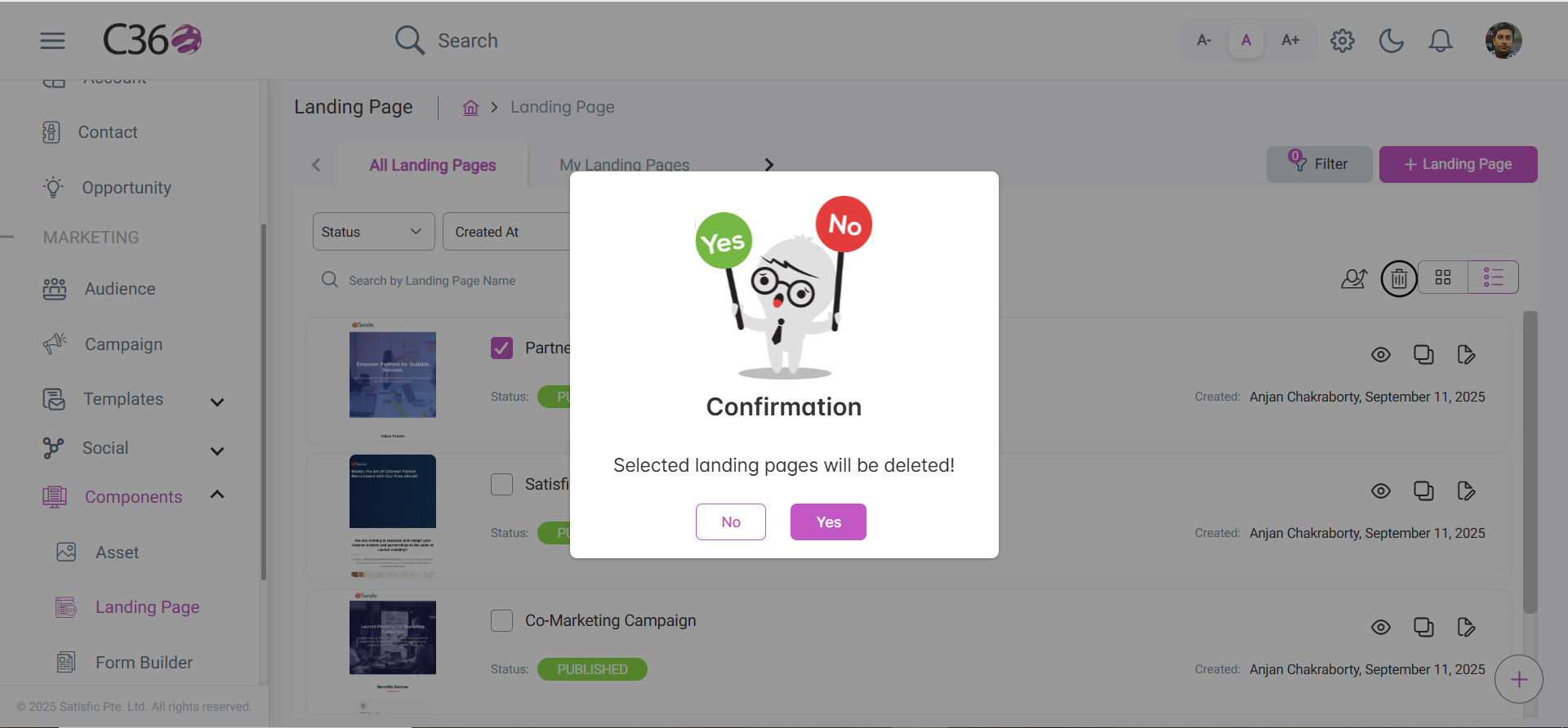
- Select the checkbox(es) for the Landing Page you want to delete.
- Click the Delete icon .
- Click on Yes from the confirmation pop-up if you want to delete.
👥Assigning Landing Pages
Select landing pages using checkboxes and click Assign To to allocate them to groups.
🔗📋 Copy And Paste Landing Page Link With Email Template
Copies the landing page URL so it can be pasted into the email template, allowing recipients to access the landing page directly from the email.
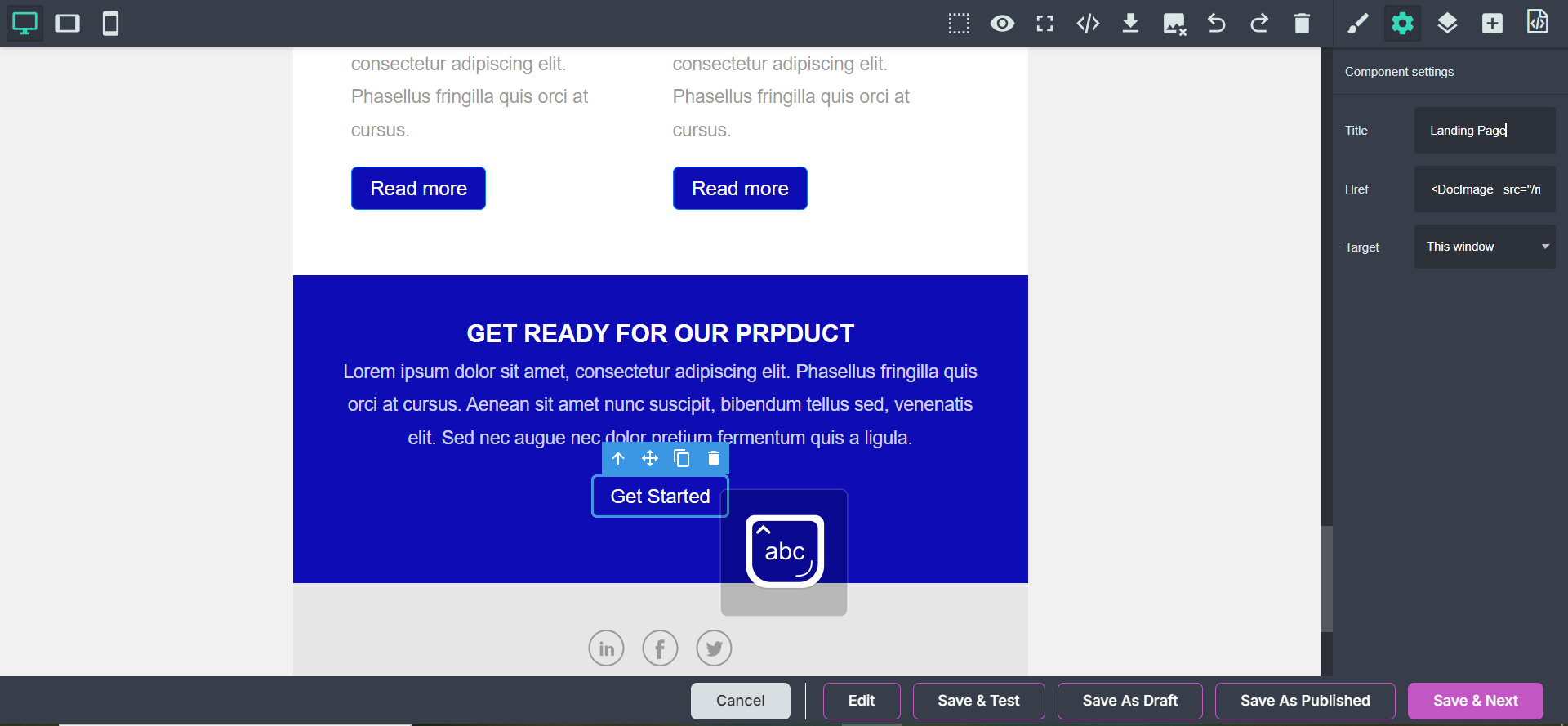
- Go to the Landing Page List and click the Copy Link icon for the desired landing page.
- Now Go to the Email Template grape Js editor and select the button where you want to add the landing page link.
- Select the settings icon and paste the copied link in the href attribute of the button.
📝🔗 Attach Form With Landing Page
Links a form to the landing page so visitors can submit their information directly from the page.
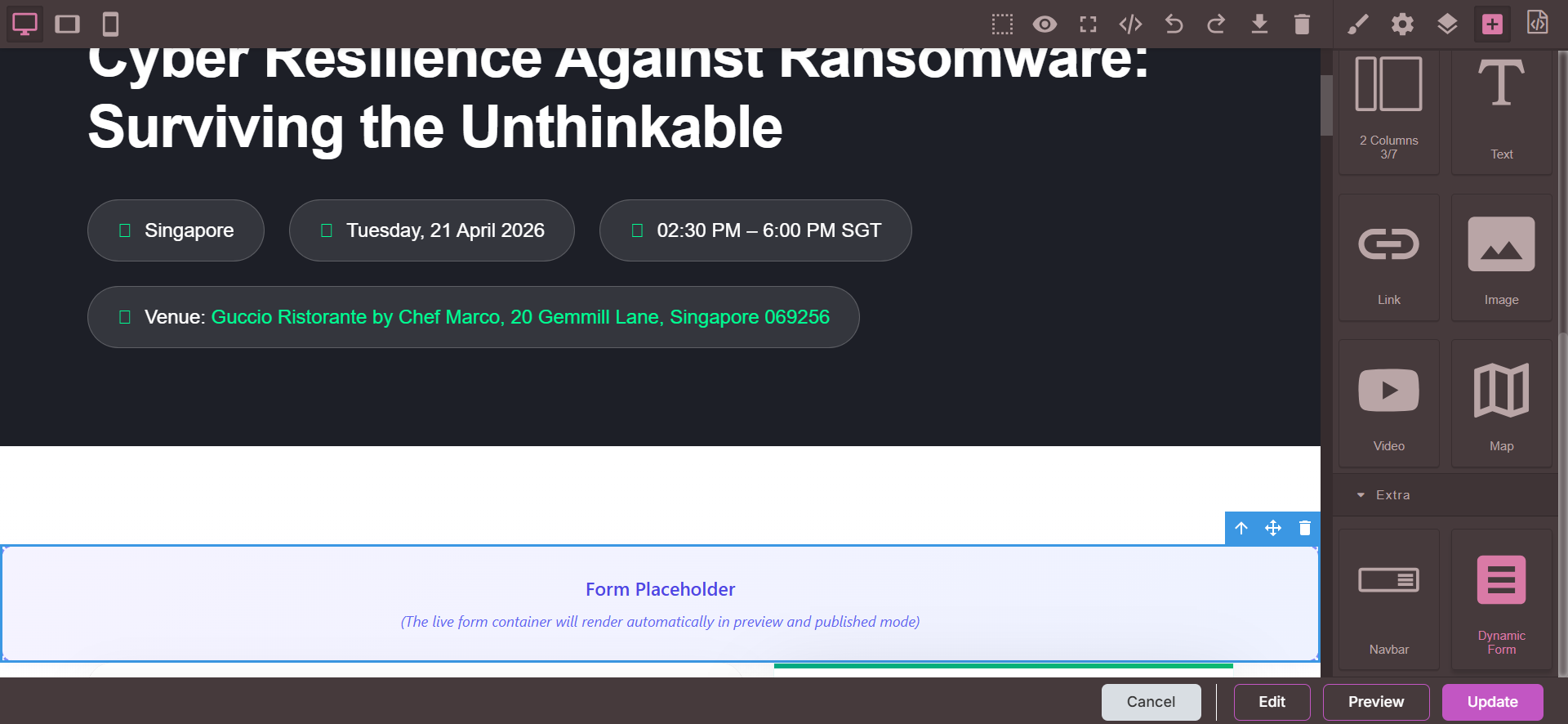
- Go to the Landing Page List and click the Edit icon for the desired landing page and go to the grape js editor.
- Click on the +(Open Blocks) icon at the top right and scroll down to the buttom .
- Find the Dynamic Form Button and drag it to the place you want to attach the form.
- Select the Form fromm the dropdown and click on Update .
⚡ Available Actions
- Edit → Opens the landing page editor.
- Clone → Duplicates the landing page in editable mode.
- Preview → Opens the landing page in a new tab.
- Change Status → Allows changing the status of the landing page.
- Copy Link → Copies the landing page link to the clipboard.
➕ Add / Edit Landing Pages
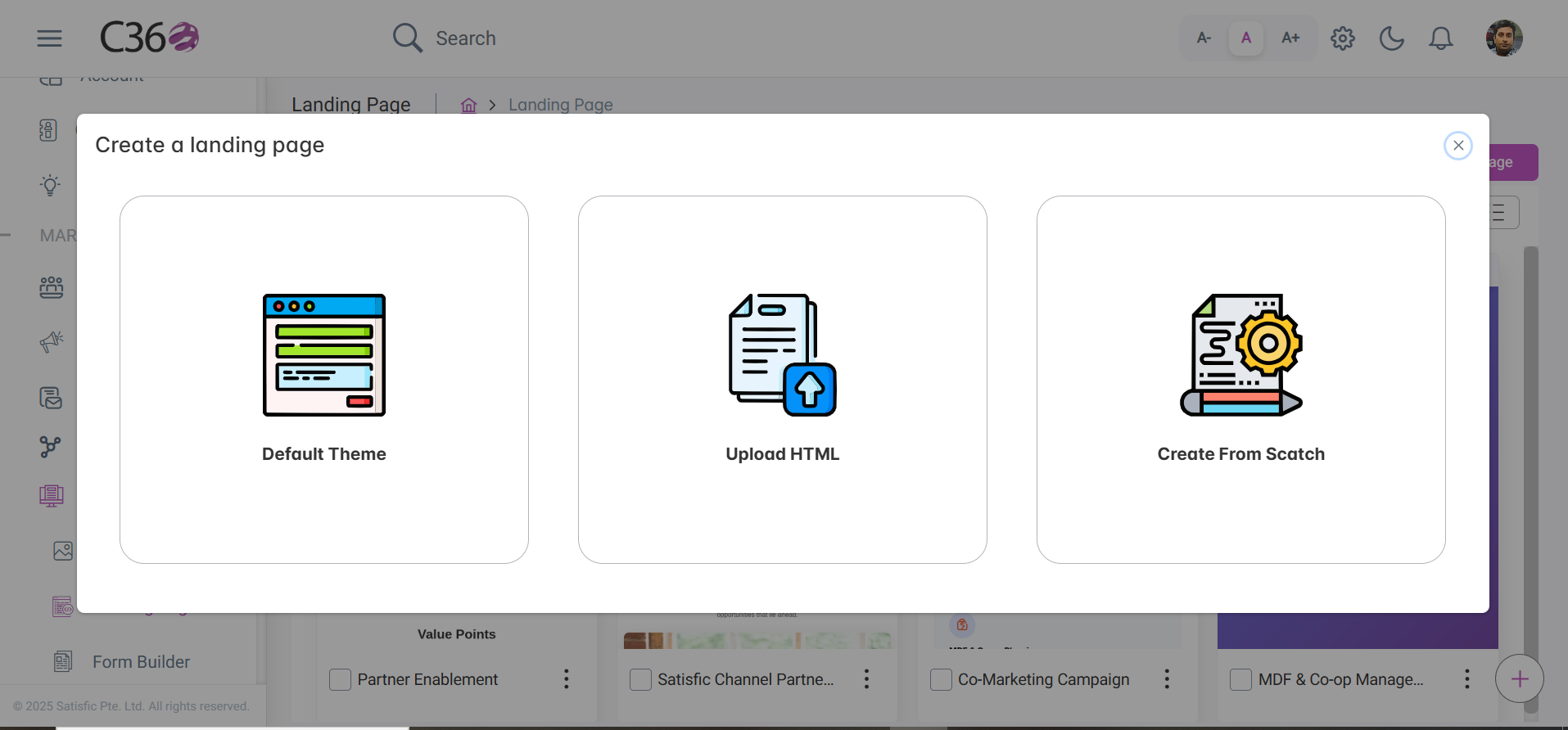
You can create a new landing page in three ways:
- Click Add Landing Page (top-right).
- Choose from:
- Default Theme → Select from preloaded templates.
- Upload HTML → Import your own HTML file.
- Create from Scratch → Start with a blank template.
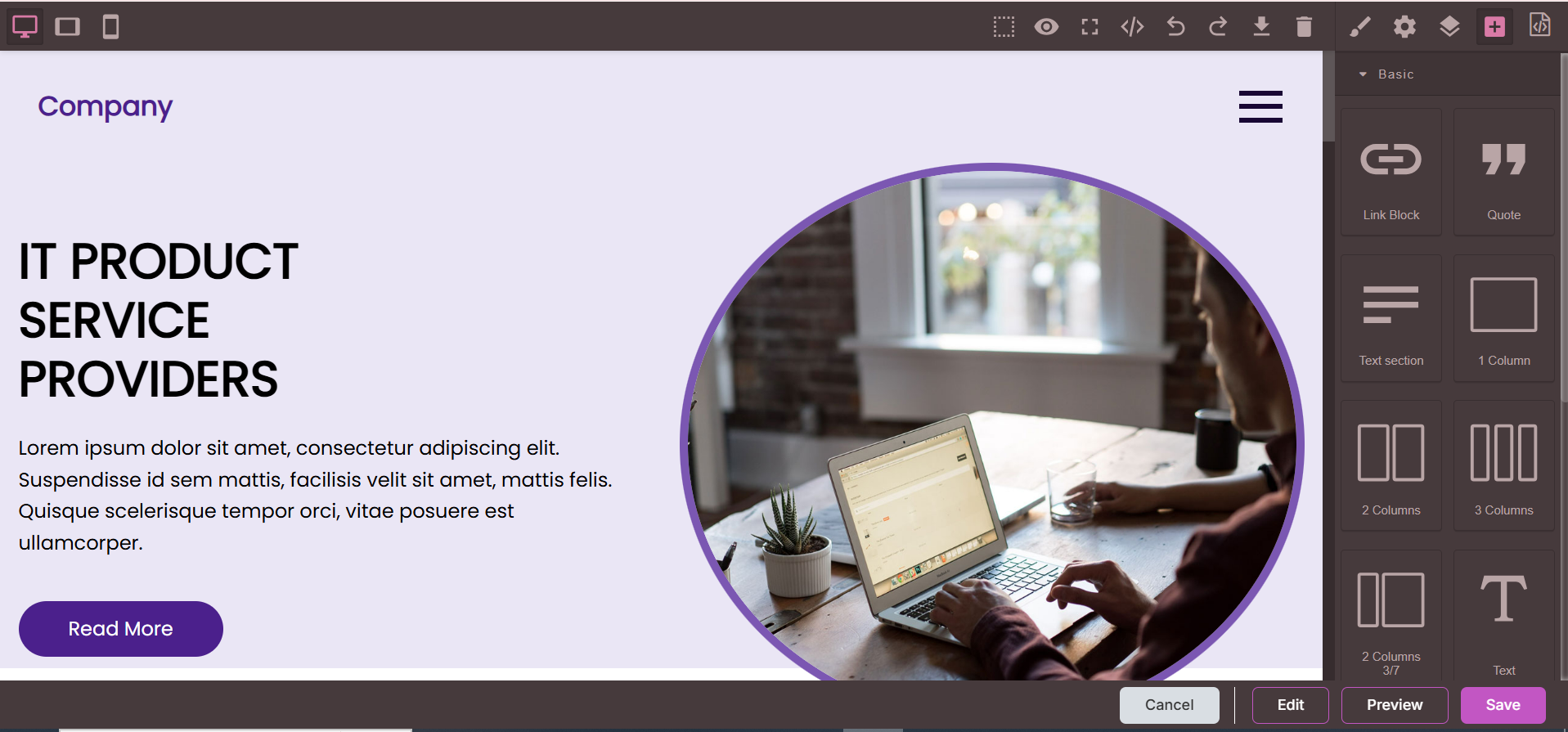
After selecting your option, you will be redirected to the Editor:
📝Steps to Create/Edit
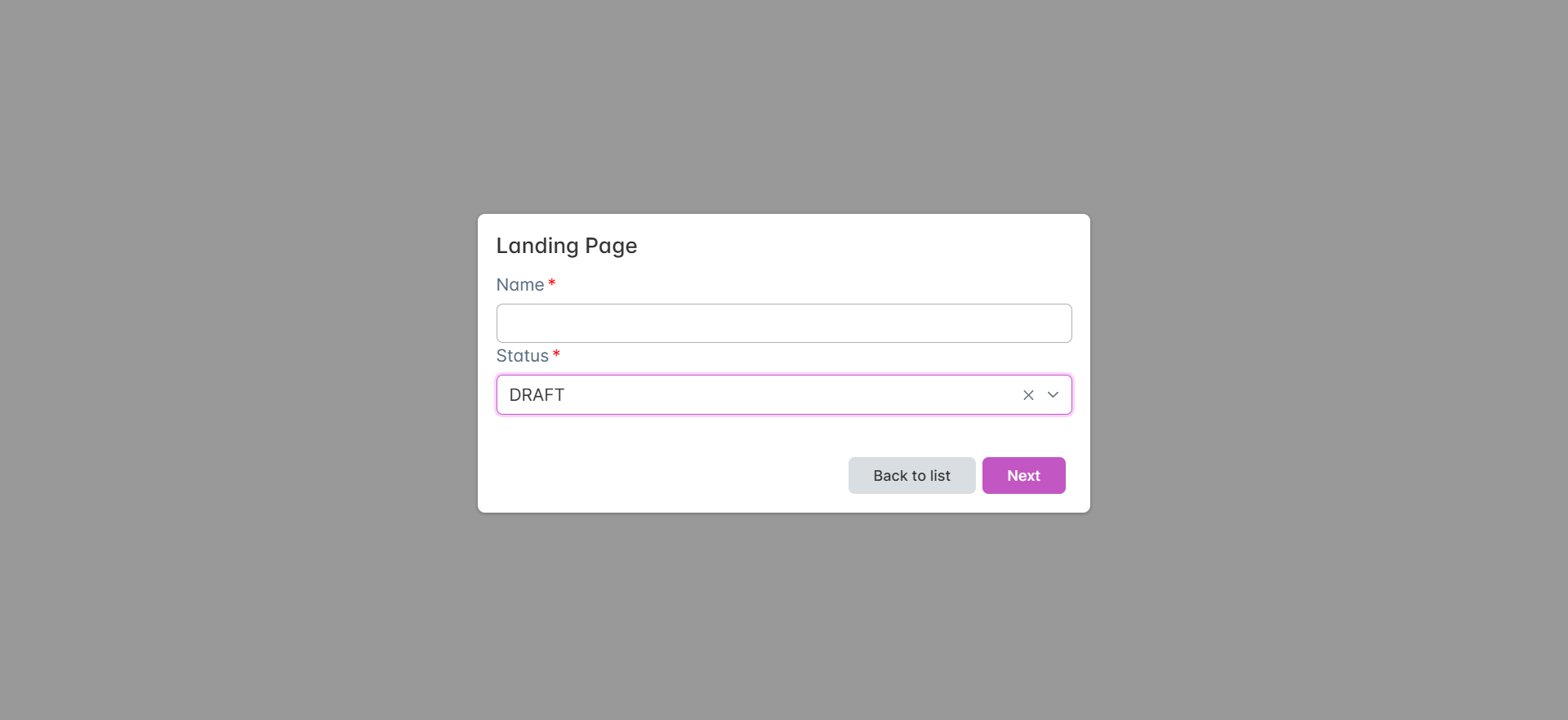
- Provide a name, select status, assign a user group → Click Next.
- Customize your page using the editor (images, dimensions, design).
- Use the menu options for advanced customization.
- From the Action menu, choose:
- Save – Save and return to library.
- Edit – Reopen the template editor.
- Preview – View the page before publishing.
📊Managing Landing Pages
Landing pages can be linked and tracked within campaigns.
- Go to the Email Template tab under Campaign Templates.
- Edit the template and copy the landing page link.
- Add the link in the href attribute of a button.
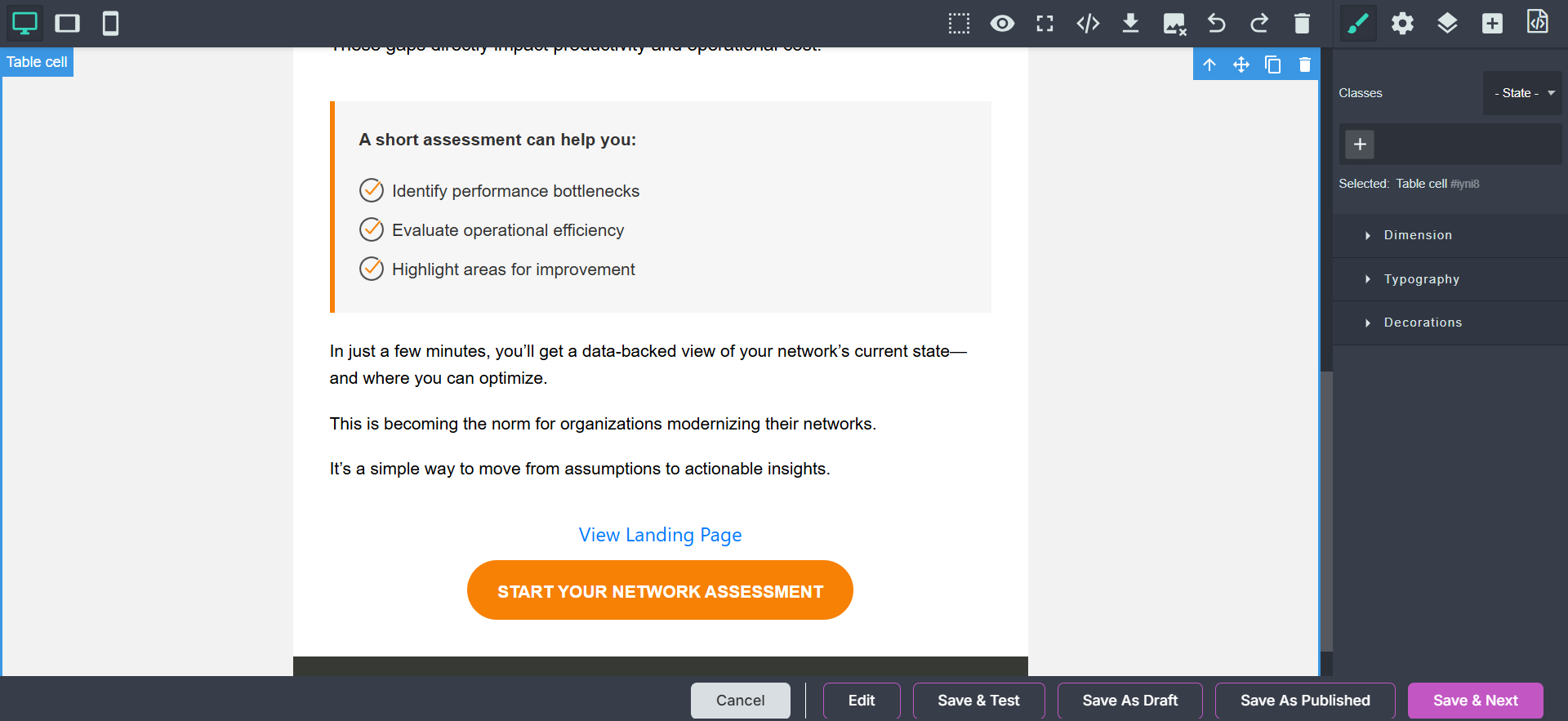
- Alternatively, insert a landing page using the Dynamic Landing Page dropdown.
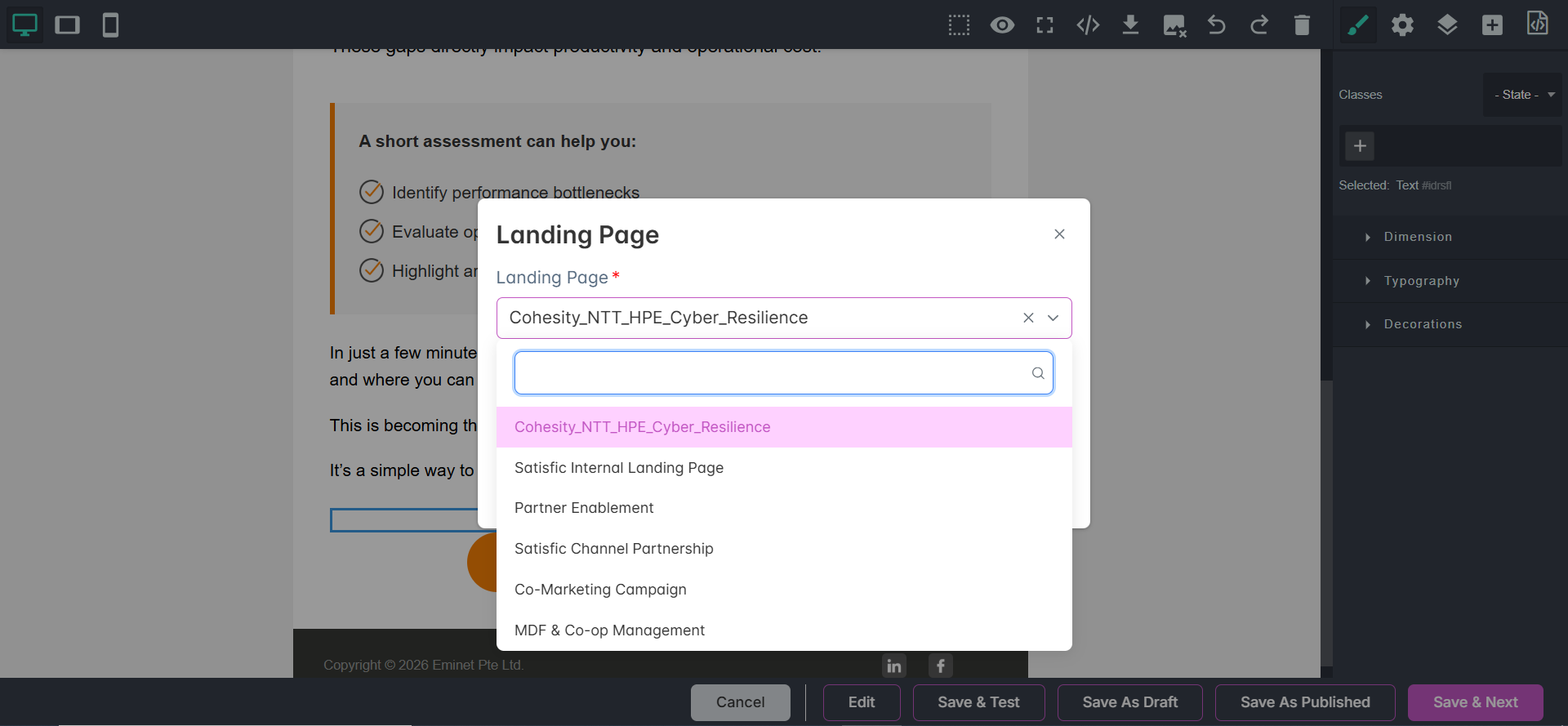
✅ By linking landing pages with campaigns, you can track visitor activity and generate valuable leads.