👥 Campaign Audience Management
The Campaign Audience module in C360 enables you to efficiently organize, manage, and target your audiences through Segment Lists and Campaign Lists.
It provides the flexibility to build precise audience groups, import data seamlessly, and prepare campaign-ready lists.
To access it:
➡️ Go to Marketing → Audience from the left-hand menu.
📑 Campaign Lists
Campaign Lists are audiences directly associated with campaigns.
They can be created manually, imported from files, or customized from existing leads.
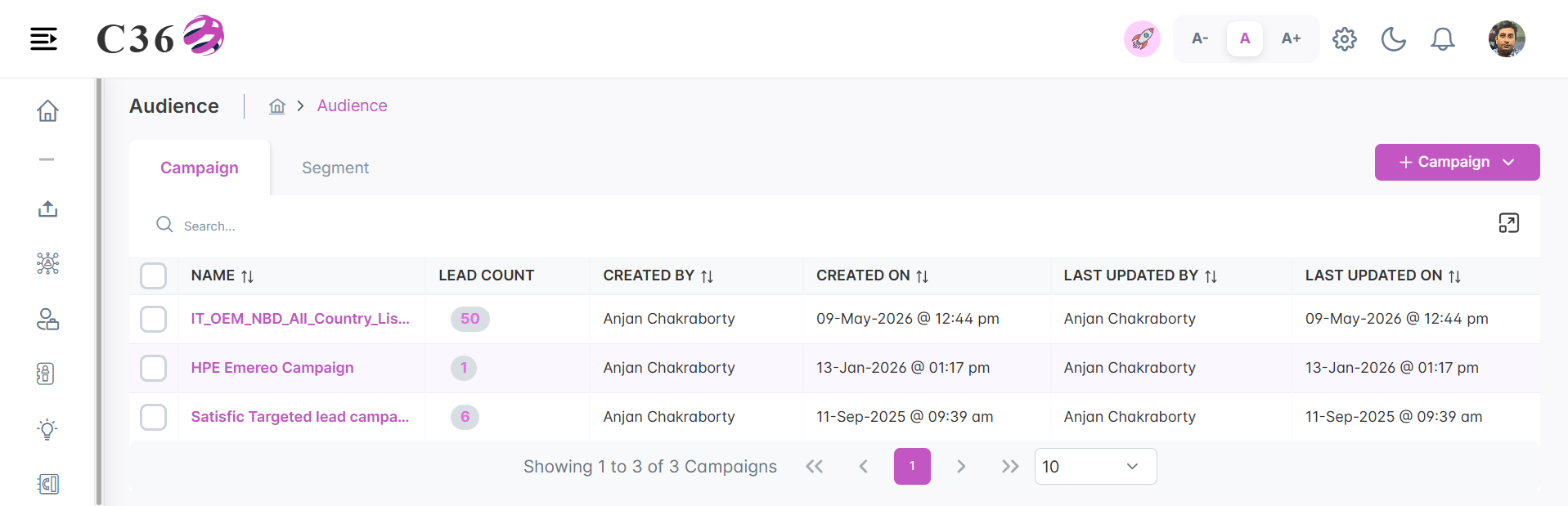
📑 List View
| Field | Description |
|---|---|
| Campaign Name | Name of the campaign list |
| Lead Count | Total leads (click to view) |
| Created By / On | Creator and date |
| Last Updated By / On | Last modified user and date |
| Actions | Upload, Edit, Delete |
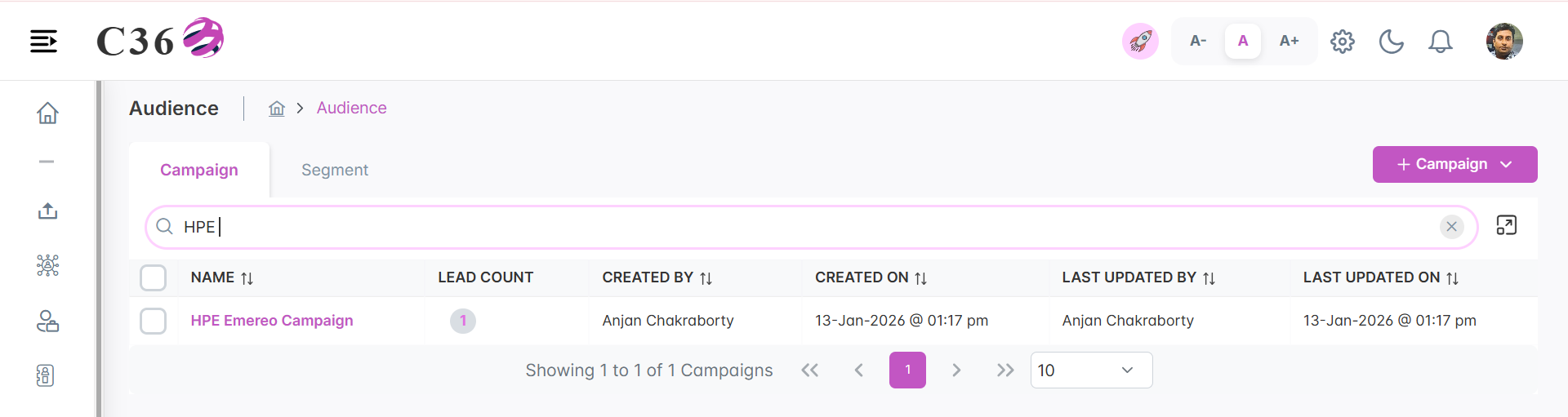
🔍 Searching Campaign Lists
- Enter a campaign list name or keyword in the search bar.
- Press Enter to display results.
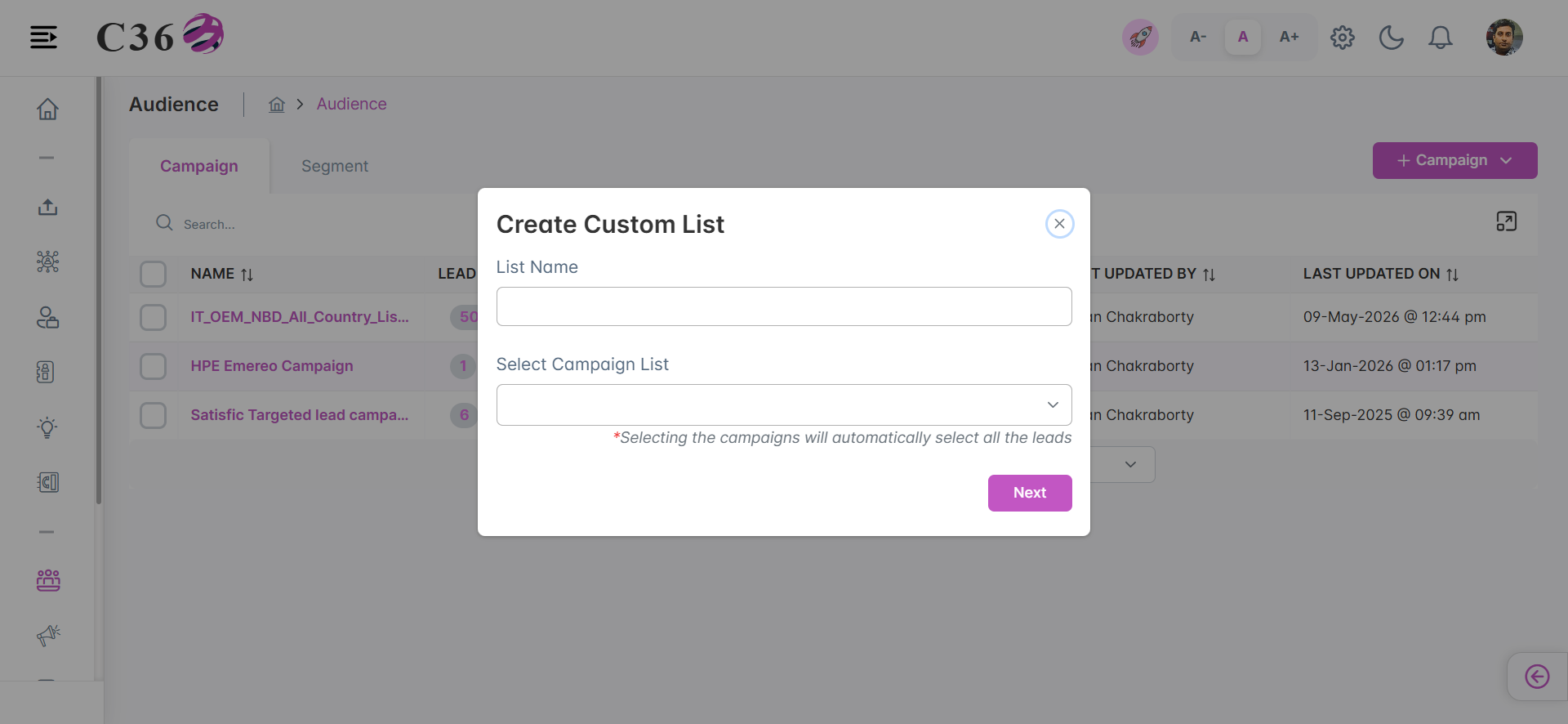
➕ Creating a Custom Campaign List
- Click Add Campaign → Custom.
- Enter a list name.
- Select leads from existing campaign lists.
- Preview and refine the list (remove leads if necessary).
- Click Save → your new campaign list is ready.
- Hard Bounce leads are automatically excluded from campaign lists.
- Archived leads are not included in campaign lists.
Click to see Upload Campiagn Audience
- To Upload Campiagn Audience, click on Upload Campiagn Audience.
📋 Segment Lists
Segment Lists are dynamic groups of leads or contacts, created by applying filters and conditions.
They are essential for building targeted audiences and ensuring campaigns reach the right people.
📑 List View
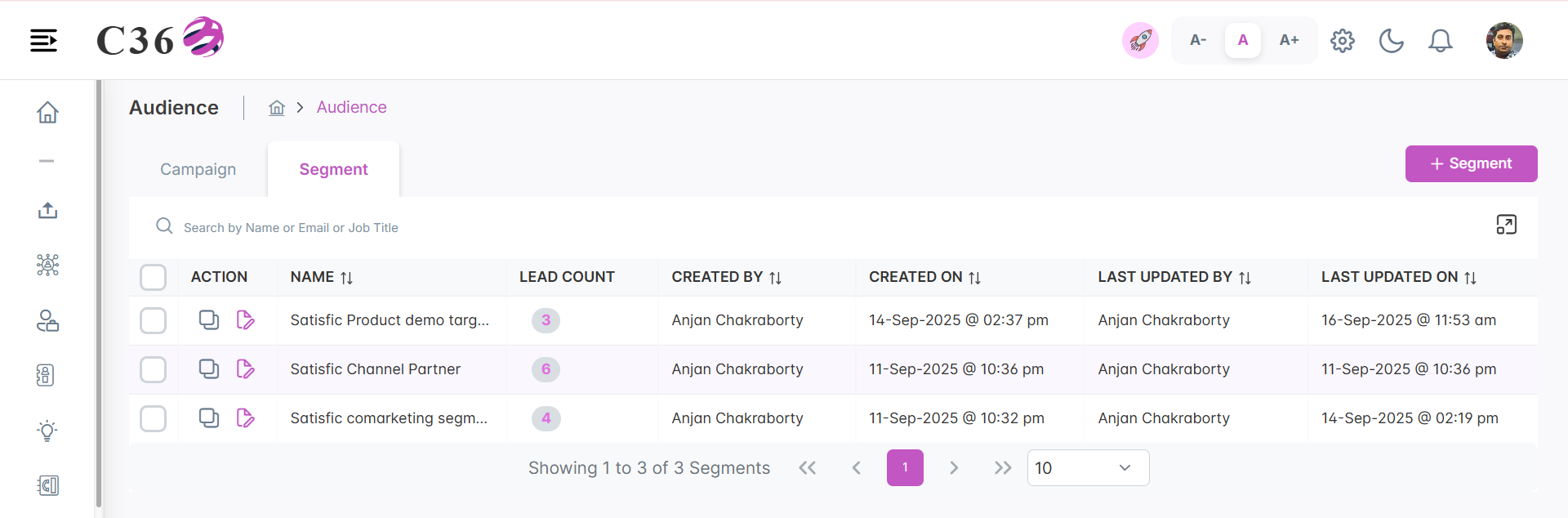
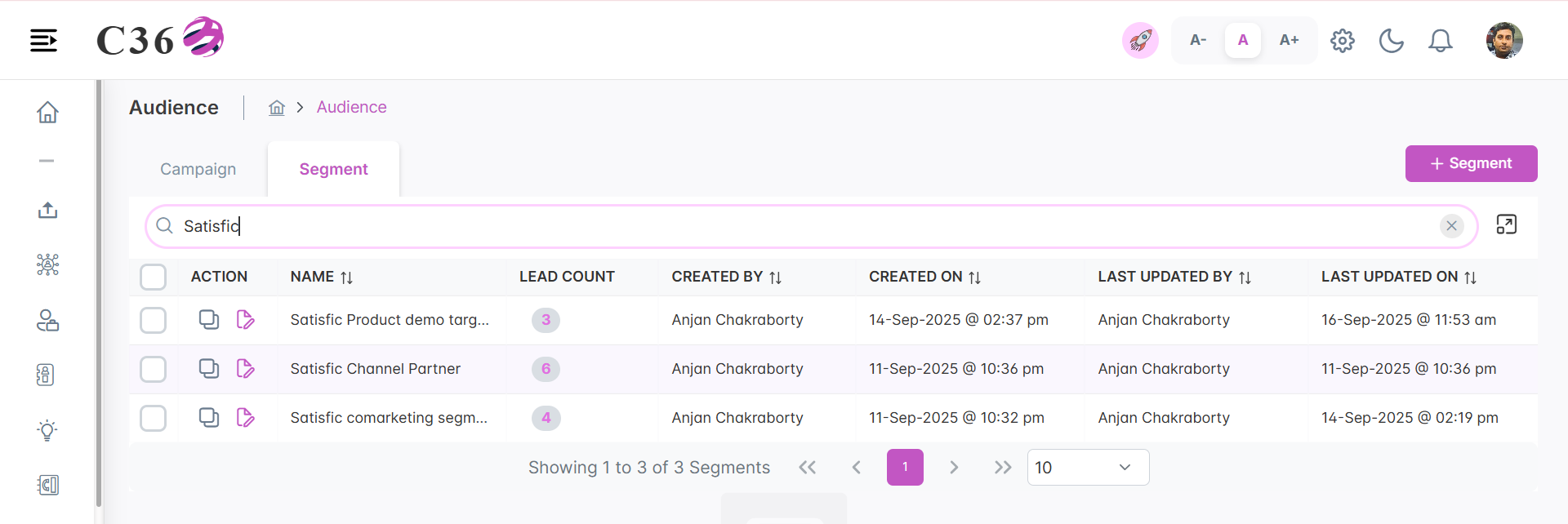
The List View displays all available segments in a structured table.
| Field | Description |
|---|---|
| Segment Name | Name of the segment |
| Created By / On | User and date of creation |
| Last Updated By / On | User and date of last modification |
| Actions | Edit ✏️ / Clone 📑 / Delete 🗑️ |
🔍 Searching Segments
- Enter a segment name or keyword in the search bar.
- Press Enter to display matching results.
➕ Adding, Editing, or Cloning a Segment
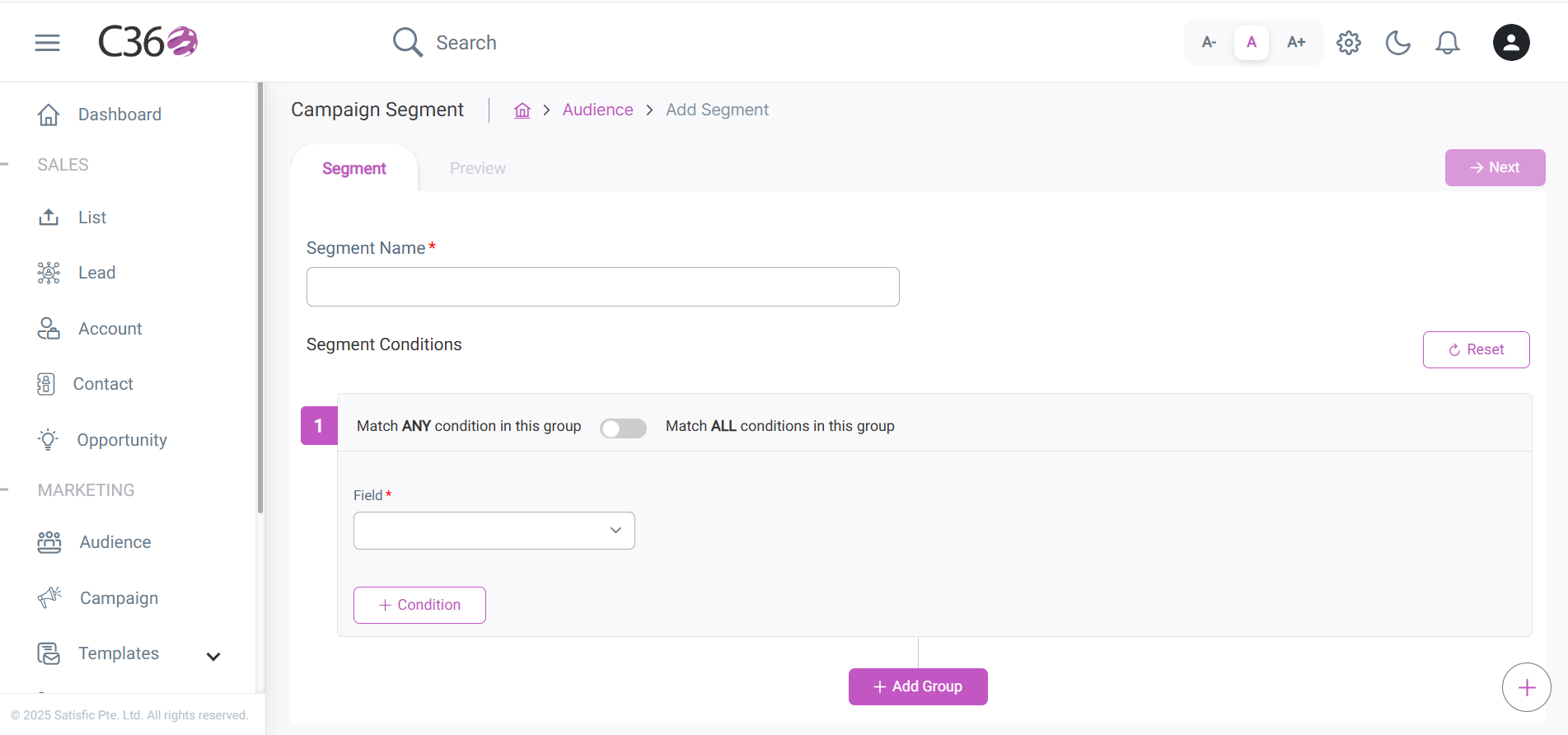
- Click Add Segment.
- Enter a unique name for the segment.
- Define conditions:
- Toggle All / Any to define matching logic.
- Add multiple groups to build advanced filters.
- Click Preview to view the matching leads.
- Click Save to store the segment.
- Edit: Click the ✏️ Pencil icon.
- Clone: Click the 📑 Clone icon. The system automatically prefixes the new segment with “Clone of –”.
💡 Best Practices
- Use descriptive names for segments and lists for easy reference.
- Clone segments to quickly create variations without starting from scratch.
- Apply filters to locate and refine segments or lists efficiently.
Deleting a segment or campaign list is permanent and cannot be undone.
Be sure before confirming deletion.