👤 User Profile & Notifications
Your C360 User Profile centralizes everything about your account — from personal details to company information and notification preferences.
Keeping this up-to-date ensures seamless collaboration, accurate branding, and timely updates across the platform.
✨ Profile Settings
Accessing your profile is quick and easy:
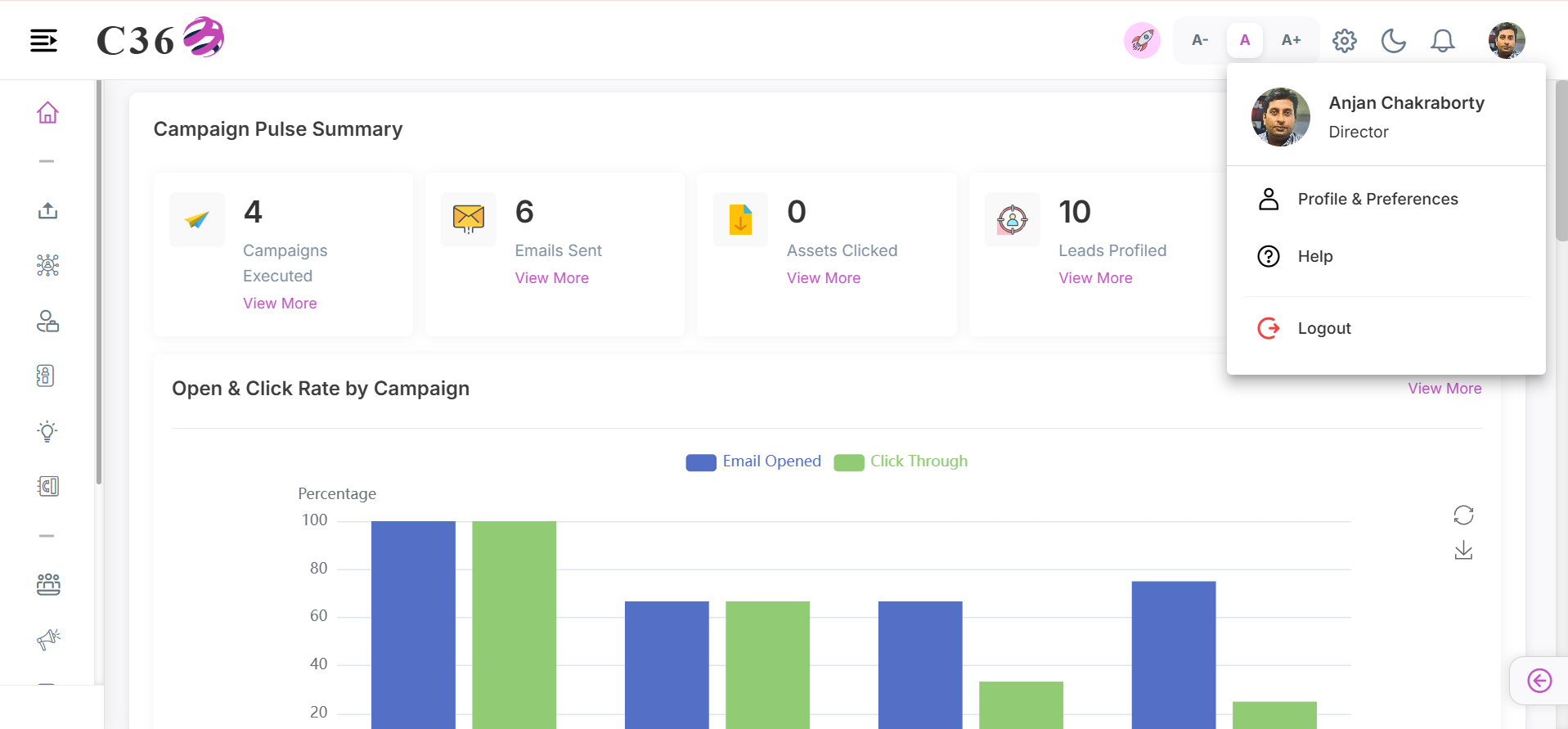
- Click the User icon in the top-right header.
- Select Profile & Preferences from the dropdown.
This opens your Profile Dashboard, where you can manage personal and company details.
🔑 Personal Information
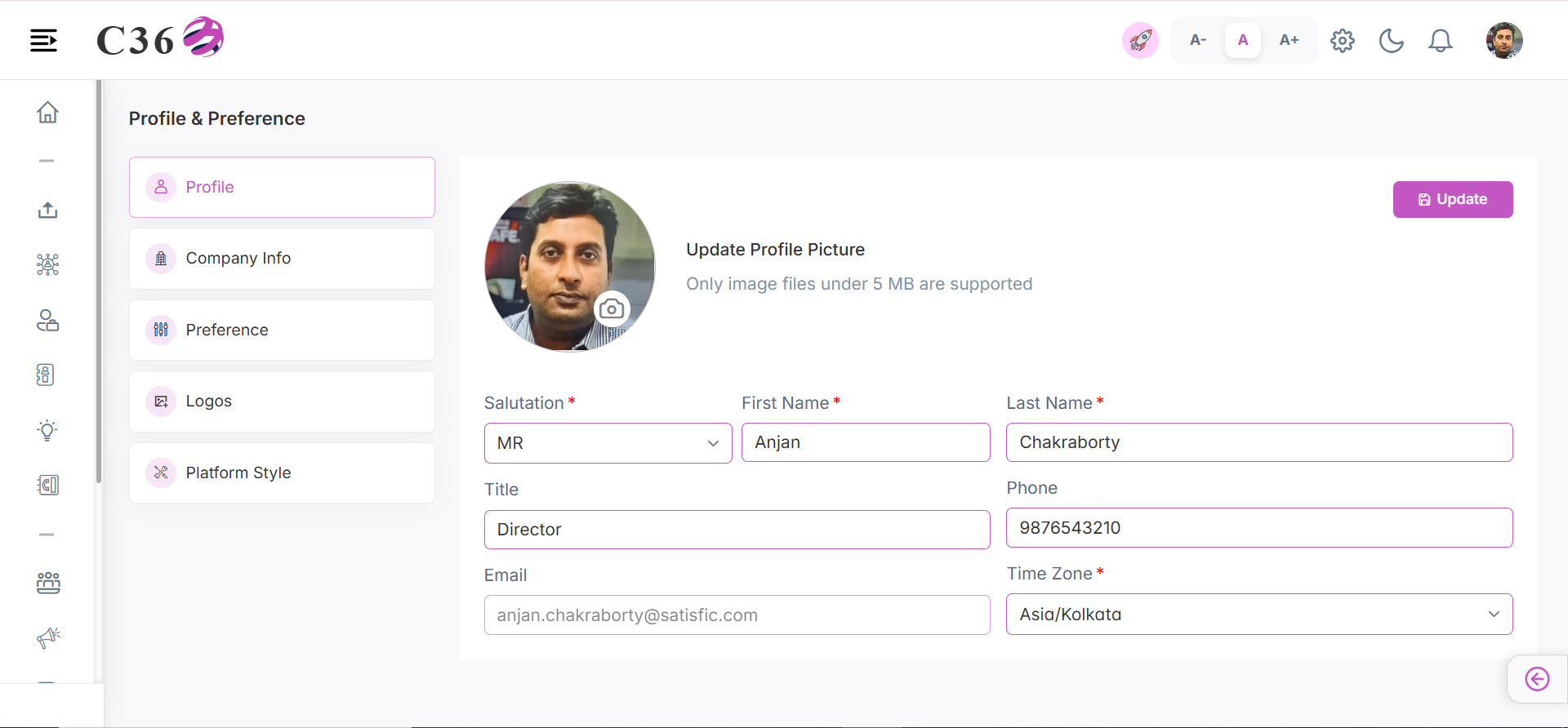
Under the Profile tab, you can update essential details:
- Salutation
- First & Last Name
- Job Title
- Phone Number
- Email Address
- Time Zone
- Profile Picture
🏢 Company Information
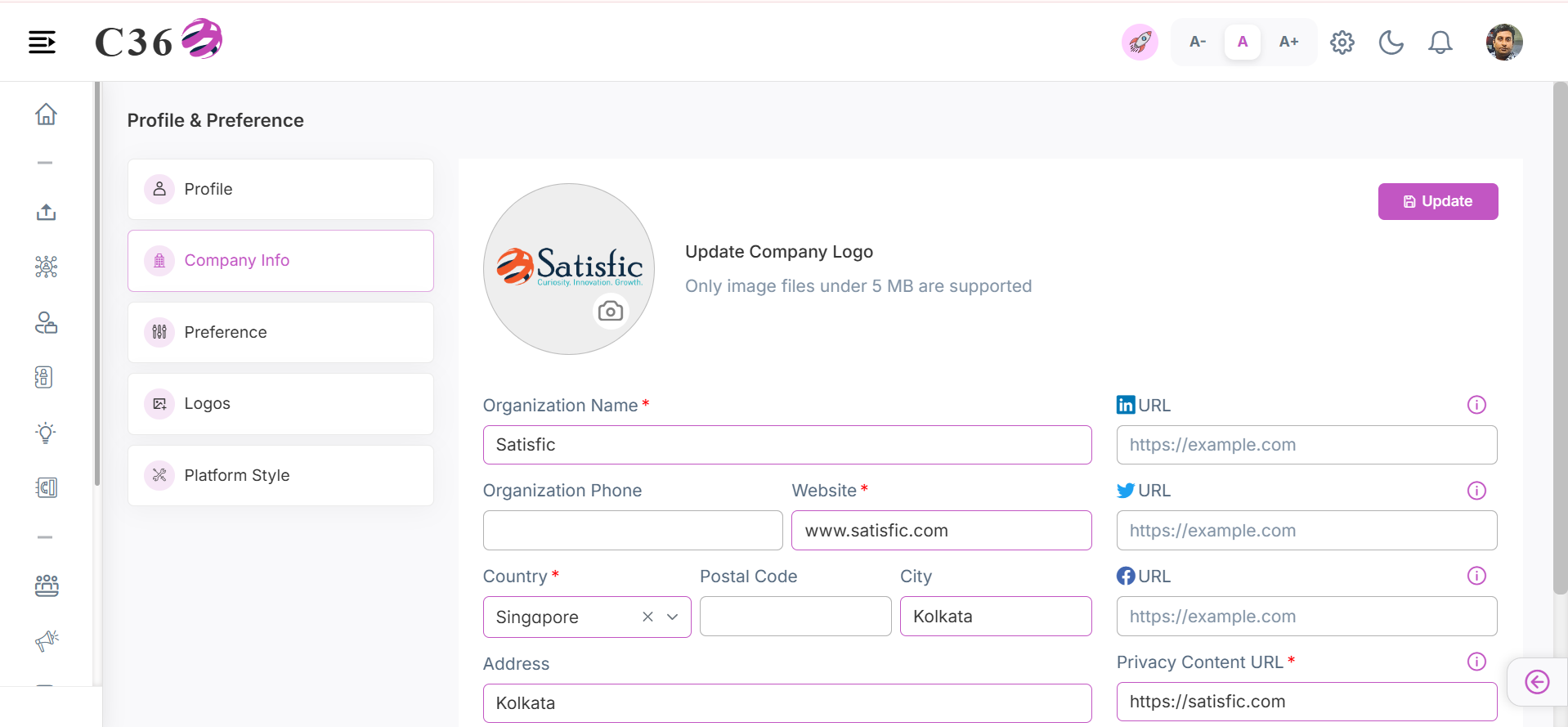
In the Company Information tab, ensure your brand identity is always consistent by providing:
- Company Name
- Phone Number & Website
- Address, City, Postal Code, Country
- Company Color & Logo
- Social Media URLs (Facebook, Twitter, LinkedIn, Google+)
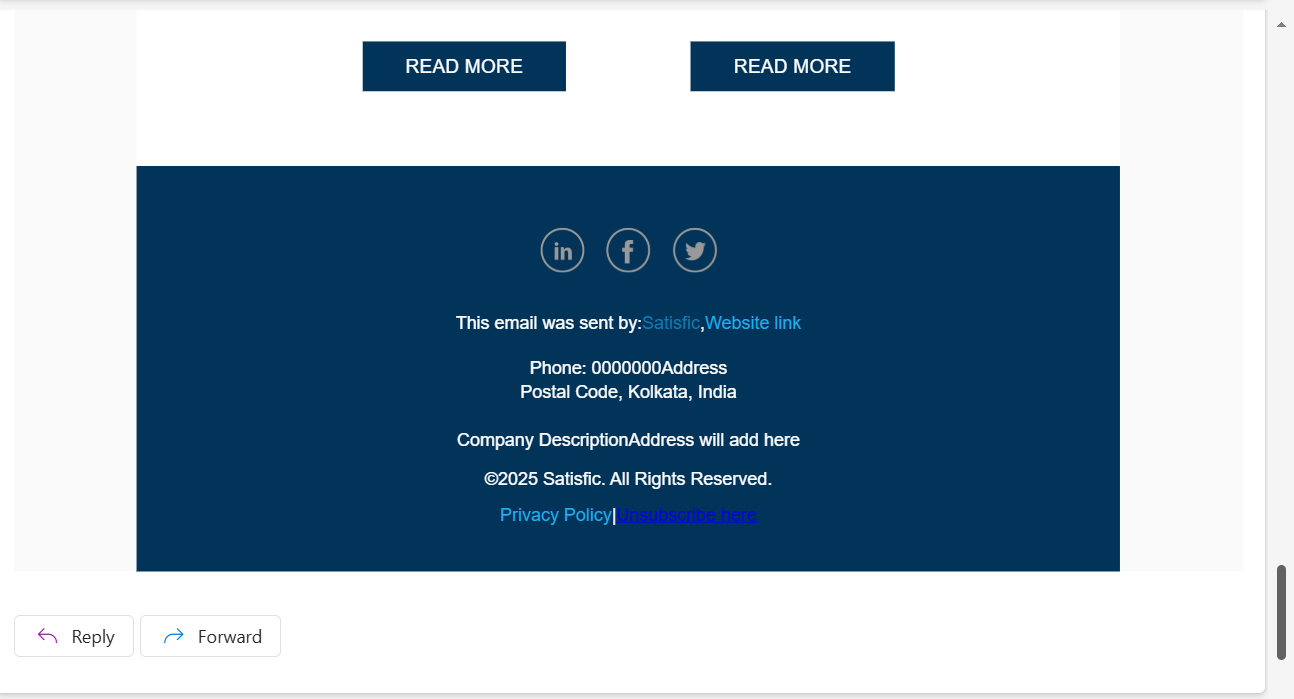
💡 Pro Tip: Company information automatically appears in default email templates, ensuring professional and branded communication.
🔔 Notification Preferences
Never miss an important update — customize how you stay informed:
- Open the Preferences tab in your profile.
- Toggle notifications for activities such as:
- Lead status changes
- Opportunity stage updates
- Assigned tasks, assets, or campaigns
- Assigned emails, templates, or multi-touch campaigns
- Landing pages, forms, and microsites
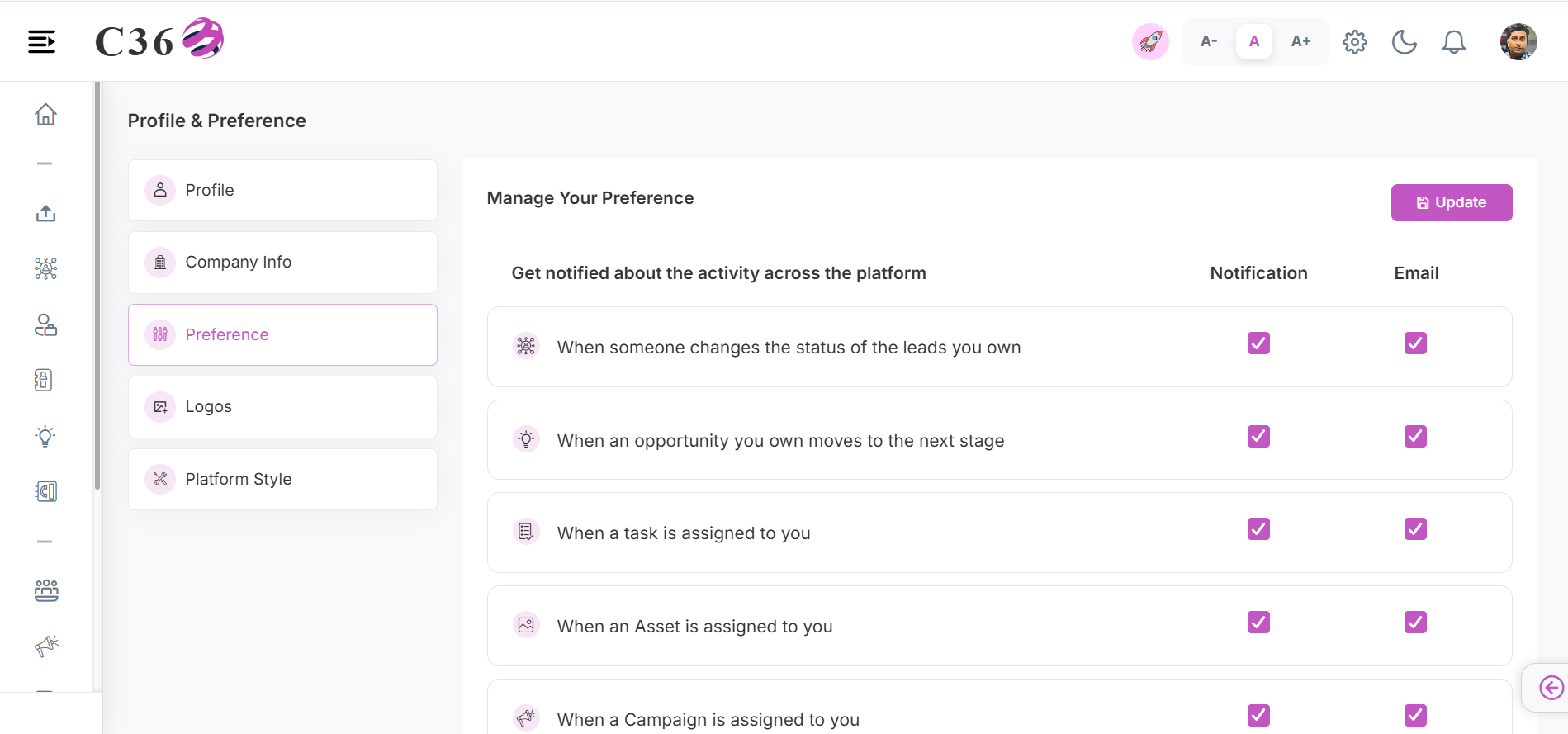
👉 Once configured, click Update to save your preferences.
📩 Viewing Notifications
Stay on top of updates using the bell icon in the header:
- The bell shows a real-time count of new notifications.
- Click to expand a dropdown with quick filters:
- All → Complete notification history
- Today → Updates received today
- Last 7 days → Last week’s activity
- Last 15 days → Two weeks of updates
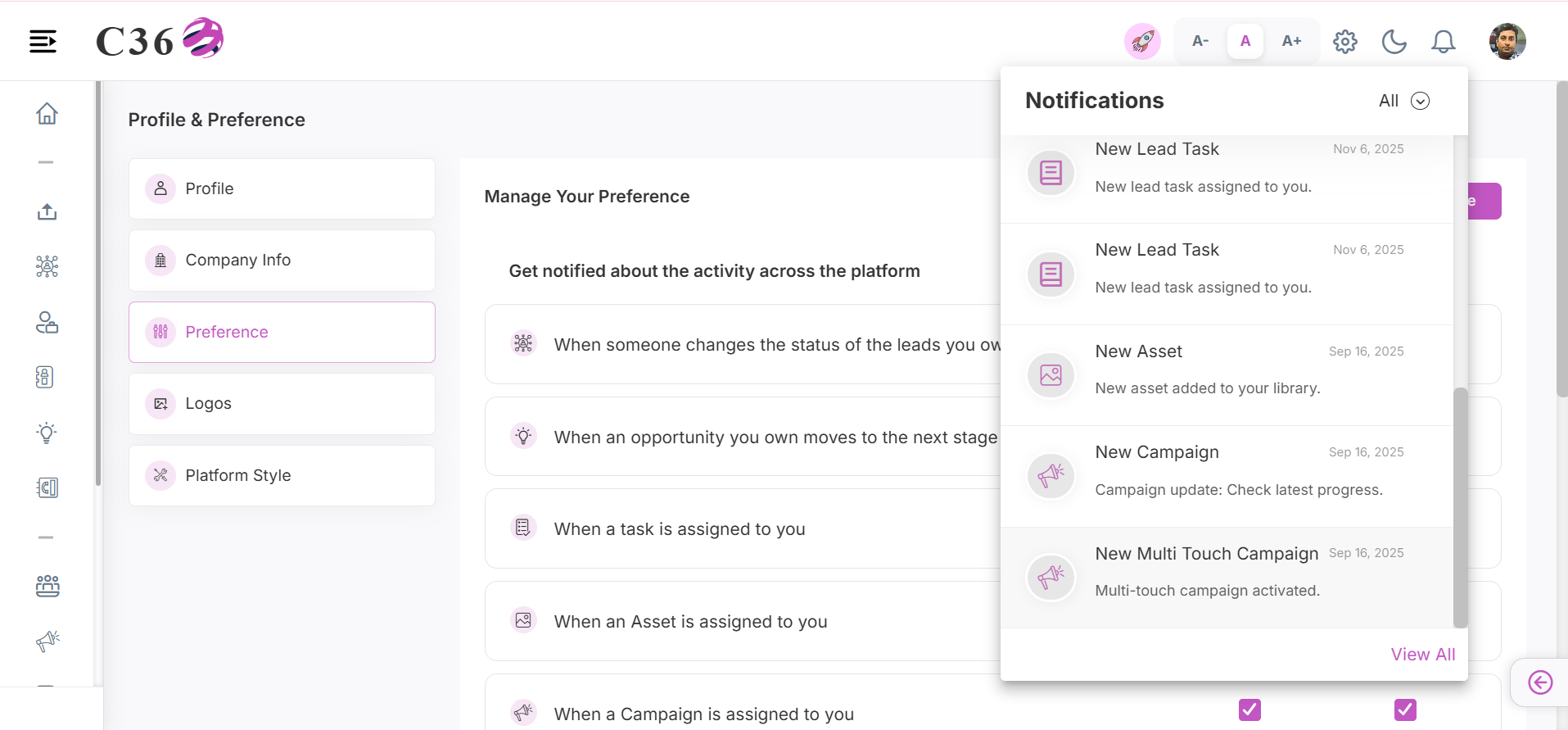
For full visibility, click View All to access the Notifications Page — filterable by date or notification type.
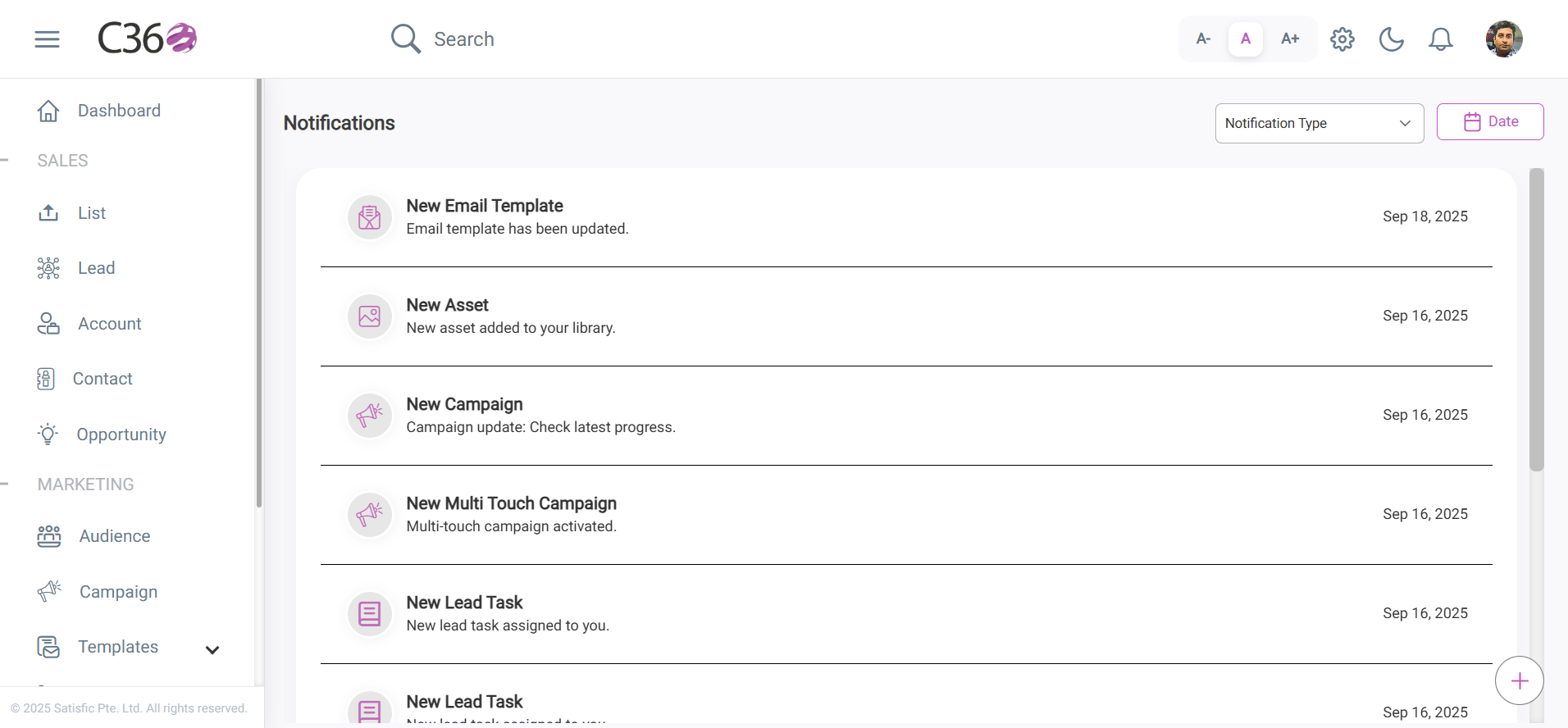
Each notification links directly to the relevant detail page, so you can act immediately.
🖼️ Logos
Logo Management allows users or organizations to upload, update, and maintain their own brand logos within the system.
This ensures consistent branding across all communication channels while giving users full control over logo versions, visibility, and placement.
To access it:
➡️ Click Select User Profile Icon → Click on Profile and Preference Tab → Click on Logos Tab.
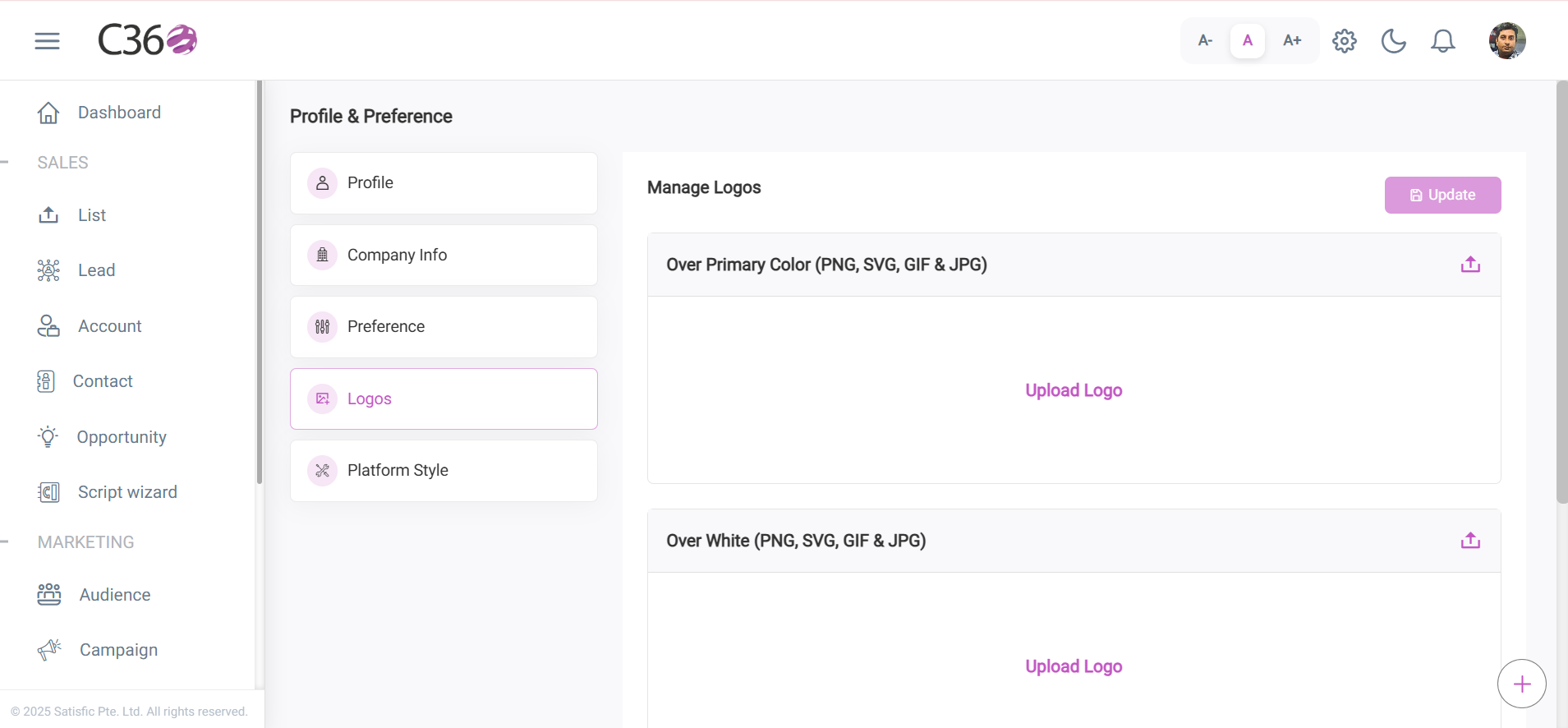
Manage Logos
- Go to the User Icon → Profile Preference → Logos Page.
- Click on Upload Logo Link or on Upload Icon.
- Select the Picture from the desktop.
- Click on Update.
You will find three options for Managing the Logos i.e. Over Primary Color, Over White, and Favicon.
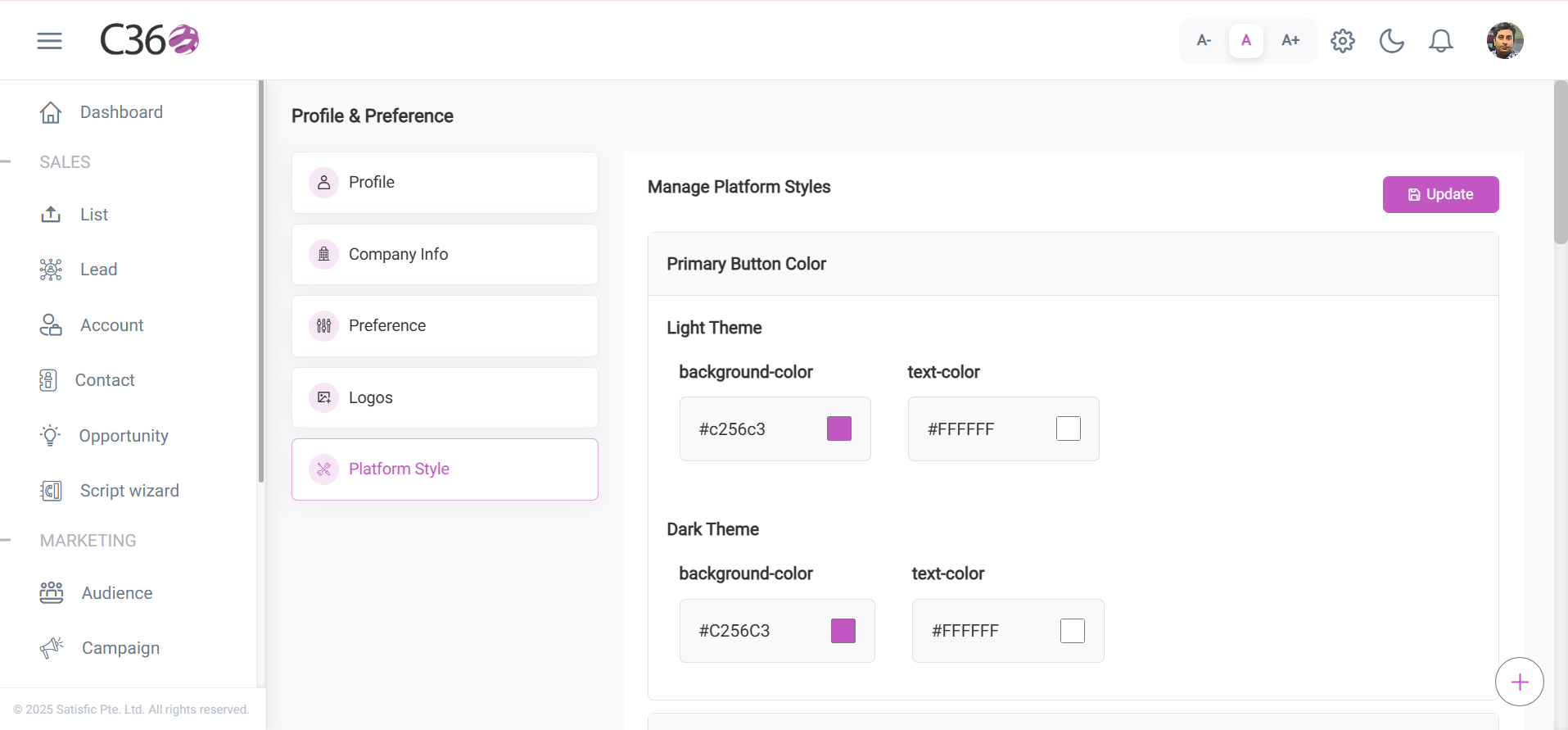
✨ Platform Style
Platform Style focuses on defining and managing your organization’s visual identity — including color schemes, typography, and design elements.
It ensures all assets consistently reflect your brand’s tone, personality, and values across every platform.
To access it:
➡️ Click Select User Profile Icon → Click on Profile and Preference Tab → Click on Brand Tab.
Manage Platform Style
- Go to the User Icon → Profile Preference → Platform Style Page.
- Select the appropriate color you want to give for the elements by clicking on the color picker.
- Click on Update.
You can set the color of the elements for both dark and bright mode.Click to See the elements you can design:
Personalizing Notification Preferences
✅ Why This Matters
- Keep your personal and company details current for professionalism and trust.
- Ensure all communication carries your brand identity automatically.
- Tailor your notifications so you only receive updates that matter most.
With C360’s Profile & Settings, you’re always in control — making collaboration easier, communication clearer, and decisions faster. 🚀