📝 Notes Management
The Notes Management feature in C360 helps you capture, organize, and track important information across Leads, Contacts, and Opportunities — keeping your team aligned and informed.
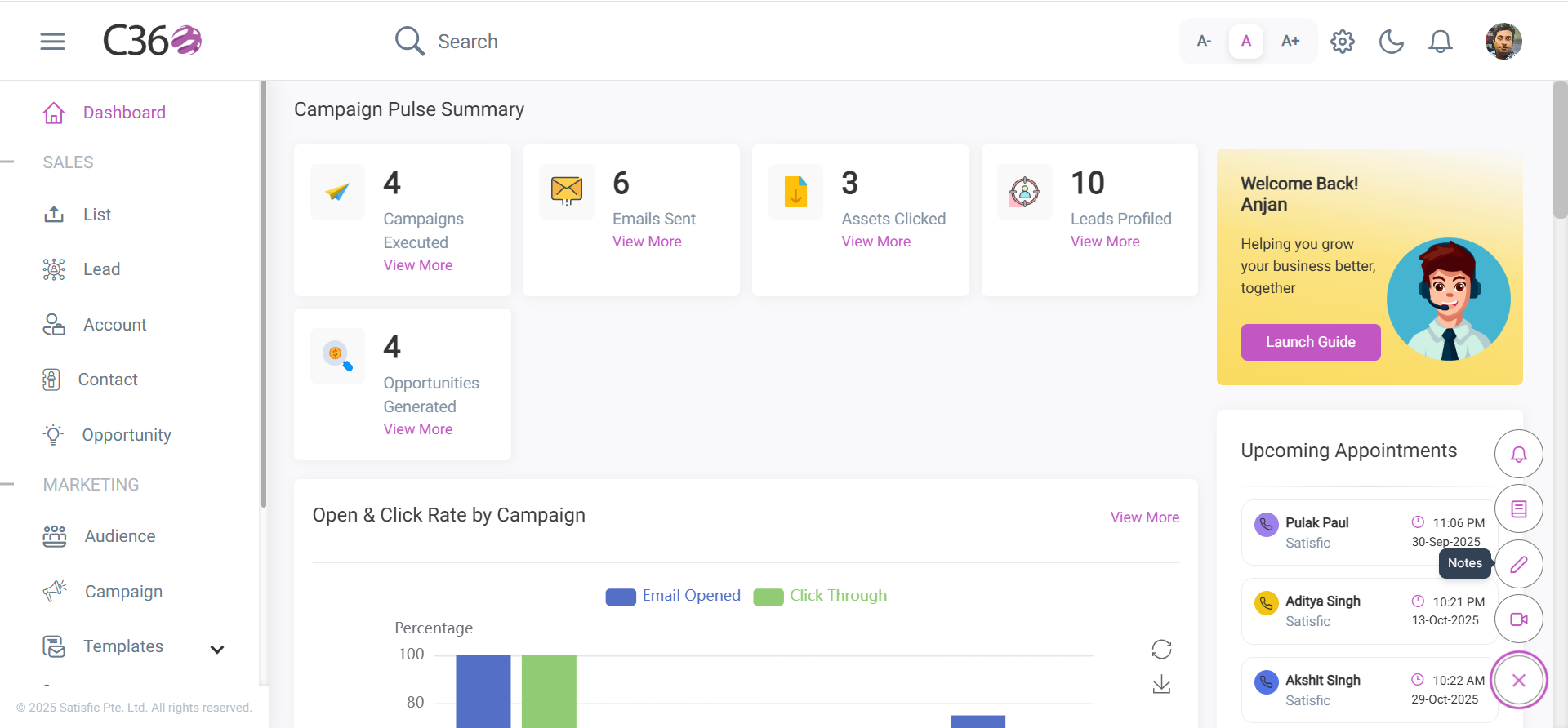
To access Notes:
Click the Notes icon in the right-hand menu.
📂 Viewing Notes
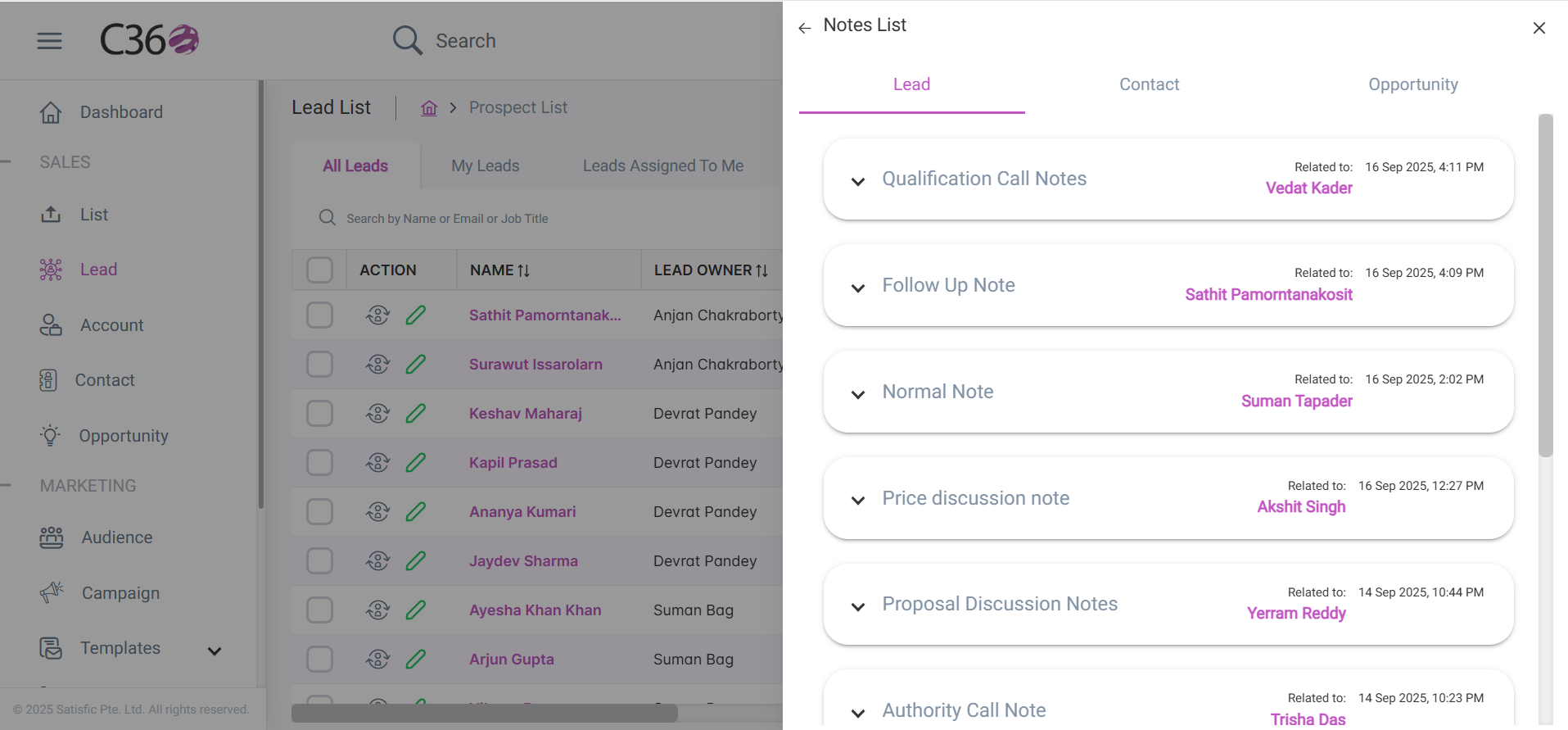
You can find and manage notes in multiple ways:
- Accordion View → Under the Lead, Contact, and Opportunity tabs.
- Detail View → On the Lead, Contact, or Opportunity details page, under the Notes tab.
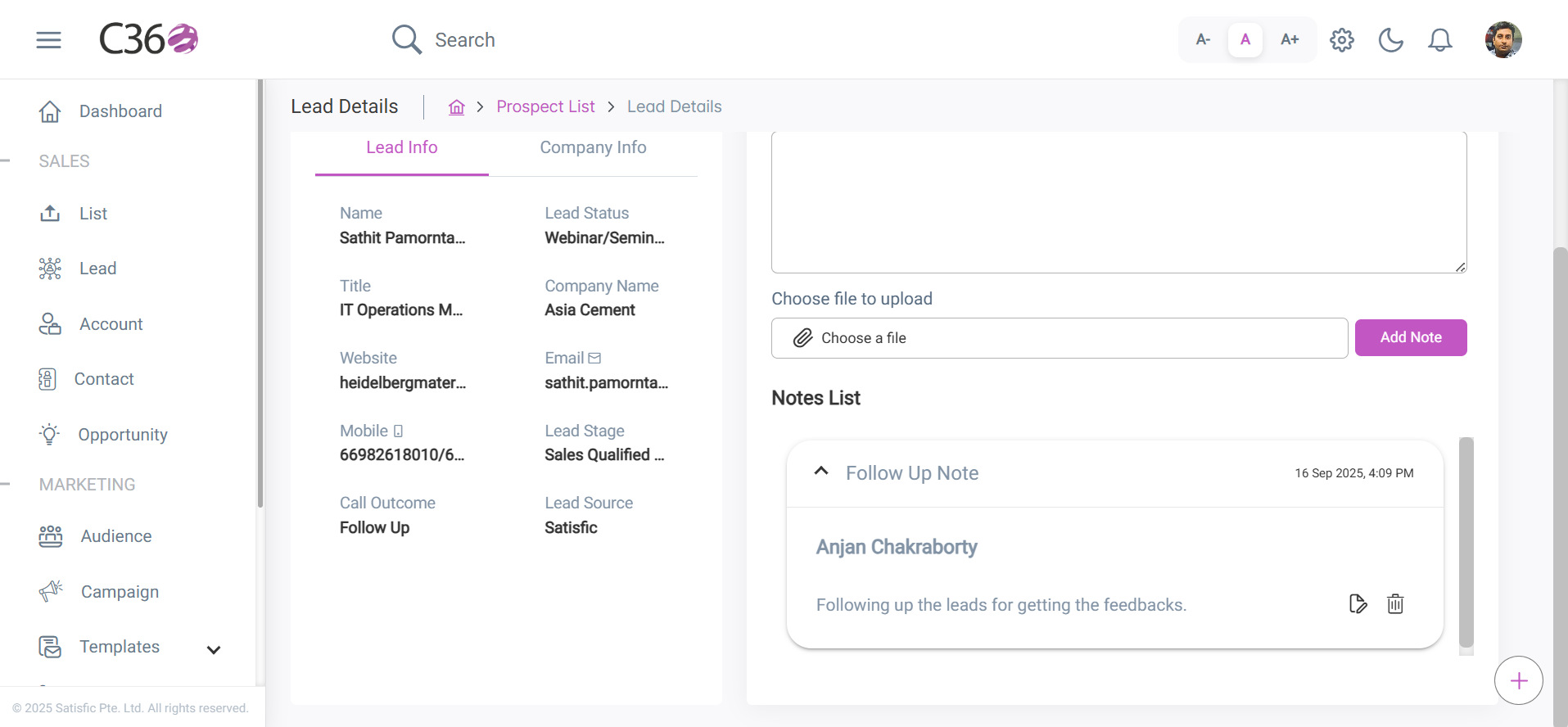
- Each note displays:
- Title
- Creation Date
- "Related to" link (clickable for quick navigation).
Expanding a note reveals its full details.
➕ Adding & Editing Notes
Step 1 — Navigate to a Record
- Open the CRM module from the left-hand menu.
- Select Lead, Opportunity, or Contact.
- Click on the individual record.
Step 2 — Add a Note
- On the right-hand panel, click Add Note.
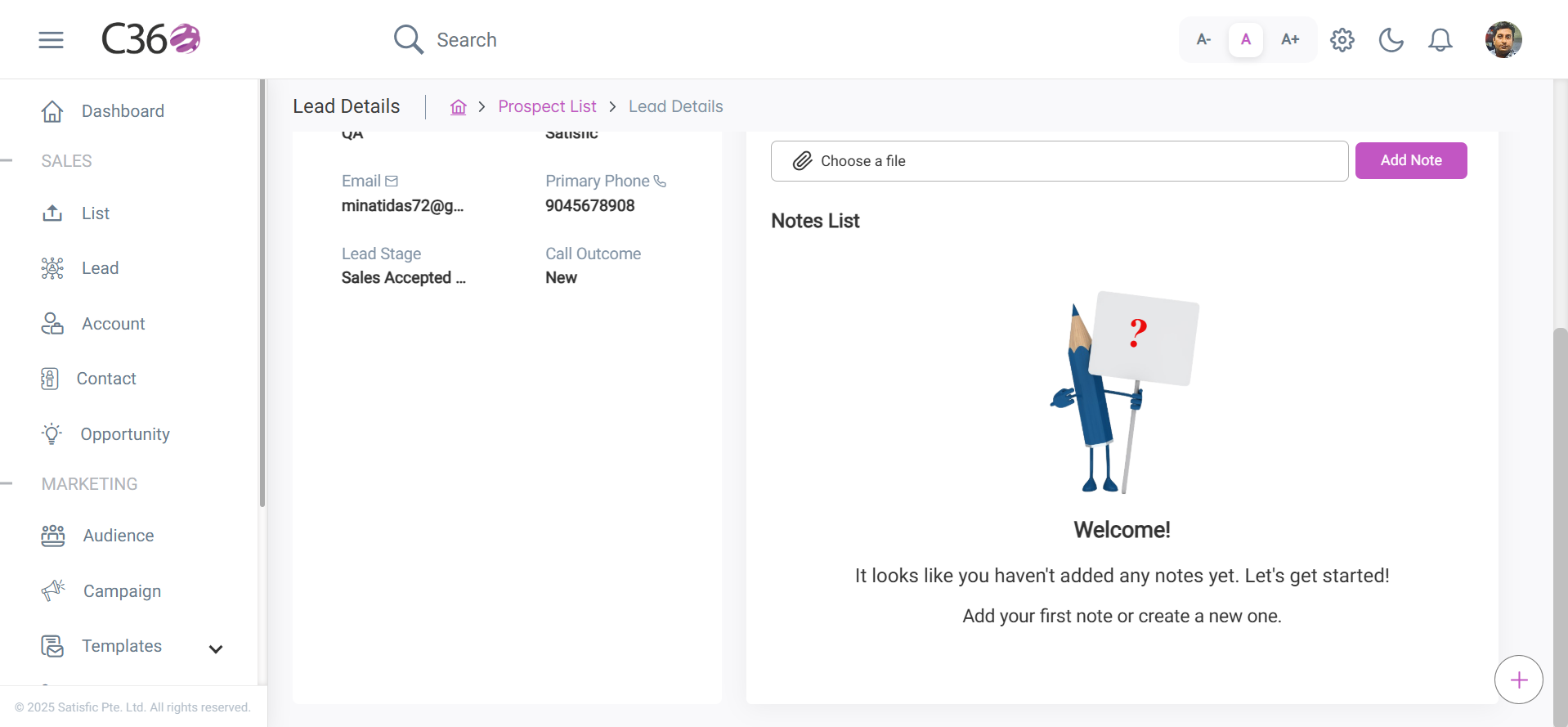
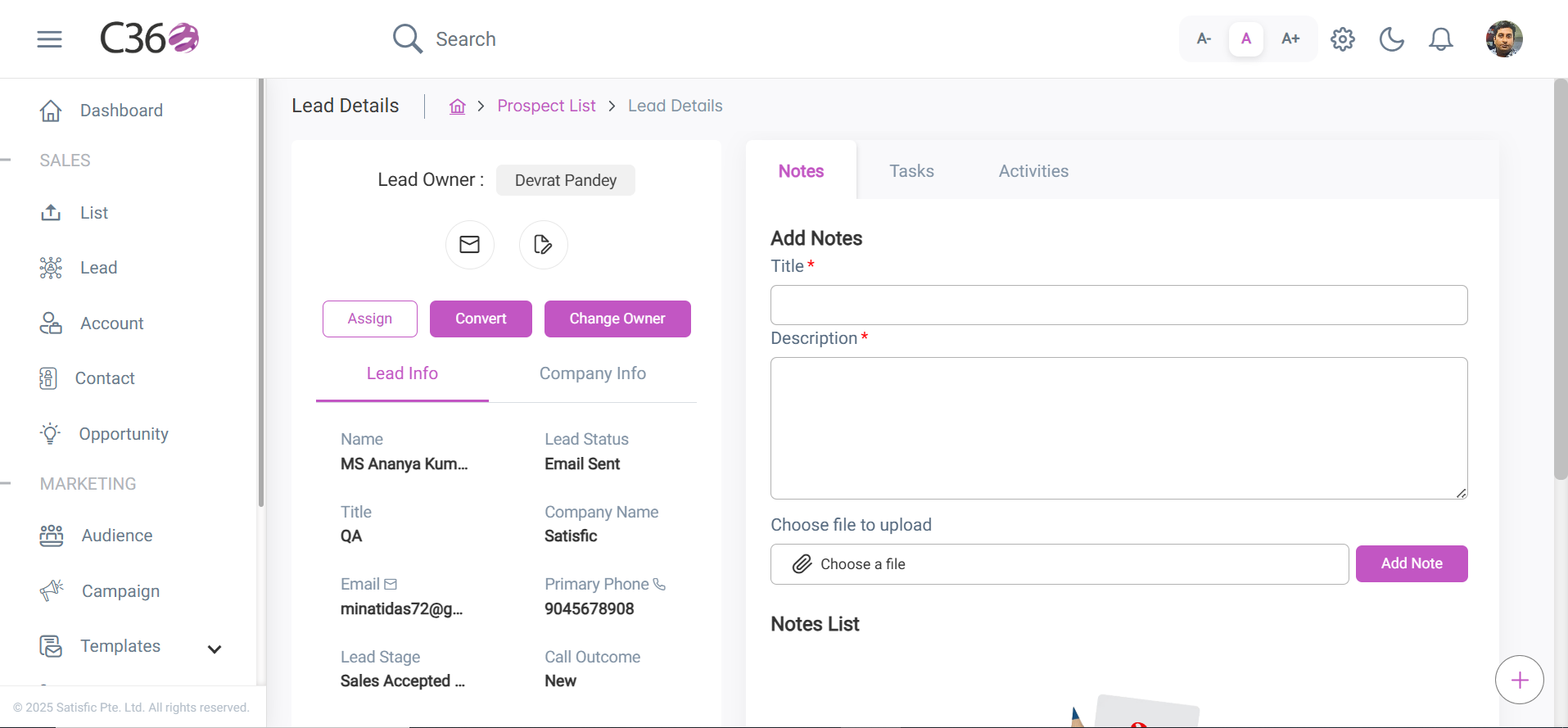
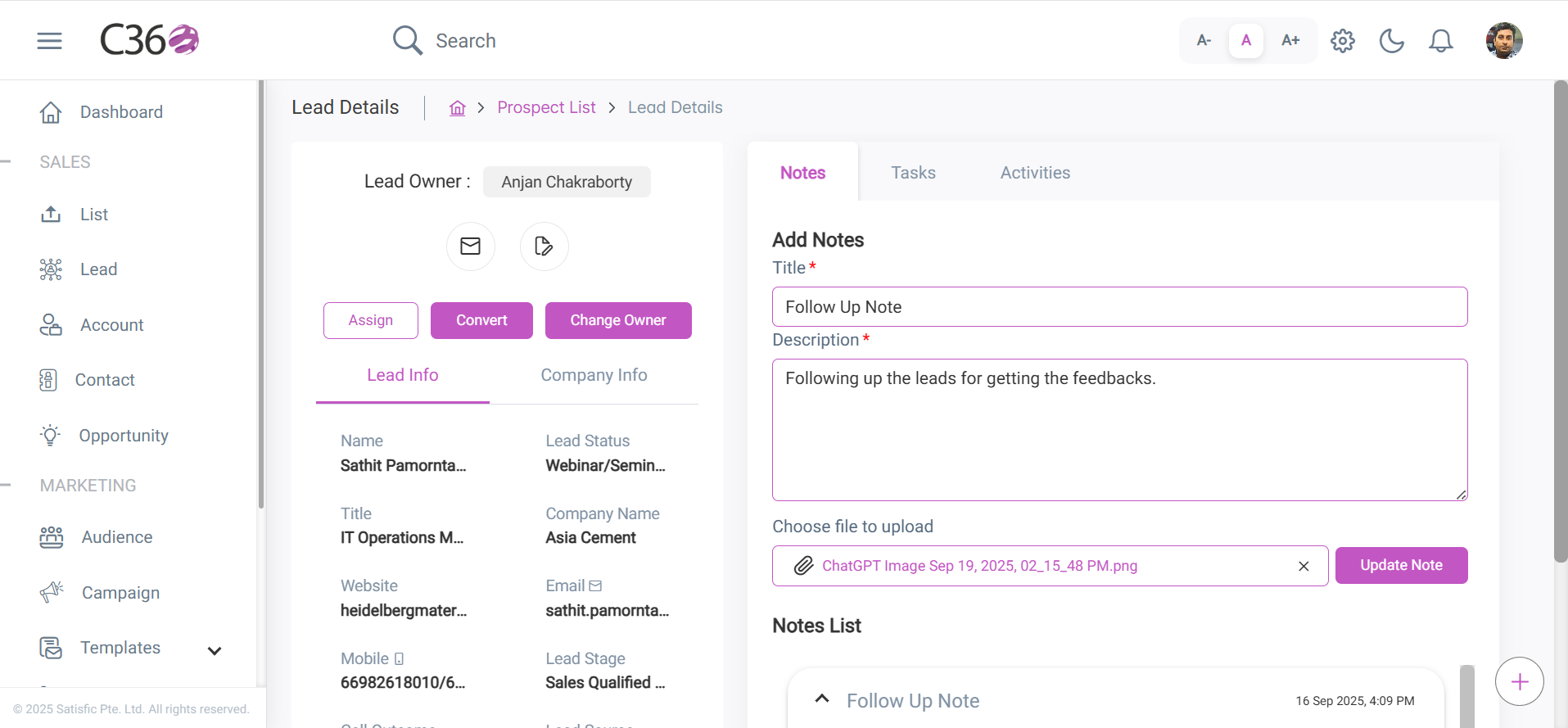
- A Note Form opens. Fill in the required fields.
- (Optional) Attach files as supporting documents.
- Click Save.
Step 3 — Manage Notes
- Add multiple attachments if needed.
- Click the Edit button to update note details.
- Click the Related to link to view notes in their associated Lead, Contact, or Opportunity record.
✅ Key Benefits
- Keep all CRM interactions documented and easy to reference.
- Attach supporting files (contracts, screenshots, proposals) directly to notes.
- Improve team collaboration and transparency with a single source of truth.